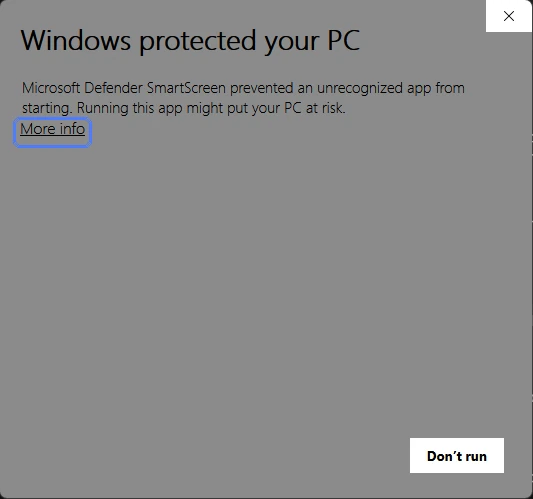
This is Microsoft Defender SmartScreen telling you it doesn’t recognize the file yet. It is not a virus warning. Click More info, check that the publisher includes Sputnik Digital LLC, then click Run anyway.
What you’re seeing
You downloaded the VanityFilter installer, double-clicked it, and Windows showed a blue or gray box titled Windows protected your PC with a single Don’t run button.
Continue the installation
- Click More info under the message. The box expands and shows the app name and its publisher.
- Check the Publisher line. It should include Sputnik Digital LLC, the company that makes VanityFilter. Windows adds the location from the signing certificate, so the full line reads US, Georgia, Acworth, Sputnik Digital LLC, Sputnik Digital LLC. The app name should be
VanityFilter-Setup-3.1.5.exeor anotherVanityFilter-Setupversion.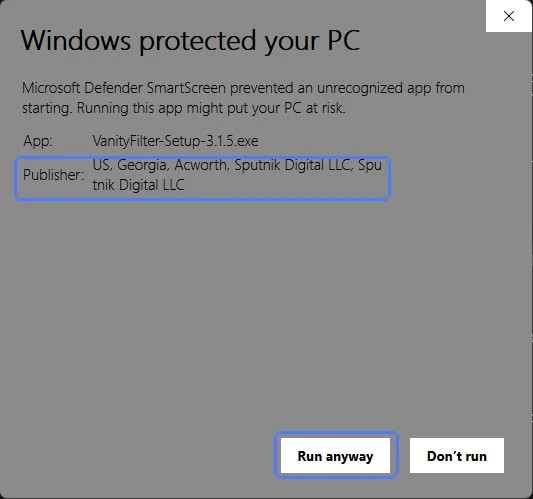
After More info: the publisher and the Run anyway button. - Click Run anyway. The VanityFilter installer opens. Follow its prompts, then open VanityFilter and paste the license key from your email.
Stop if the publisher is wrong. If it says Unknown publisher or any name other than Sputnik Digital LLC, click Don’t run, delete the file and contact us. Our installer is always signed.
Why Windows shows this
SmartScreen looks at two things before a downloaded program runs: whether it’s signed by a known publisher, and whether that exact file has a history of being downloaded and run without problems.
VanityFilter passes the first check. The installer carries a valid digital signature from Sputnik Digital LLC. The second check takes time. Every new version of VanityFilter is a new file, and Windows needs to see a file used on many computers before it stops asking. Microsoft says this can take several weeks, and developers can’t request it for home PCs. So you’re most likely to see the message in the days after a release.
Confirm you have an official installer
The publisher check above is enough for most people. If you want to be thorough, or someone sent you the file, run these checks too.
- Check where it came from. Official installers come only from vanityfilter.com/download. Our emails link there as well. Don’t install VanityFilter from download sites, file shares or links sent by anyone else.
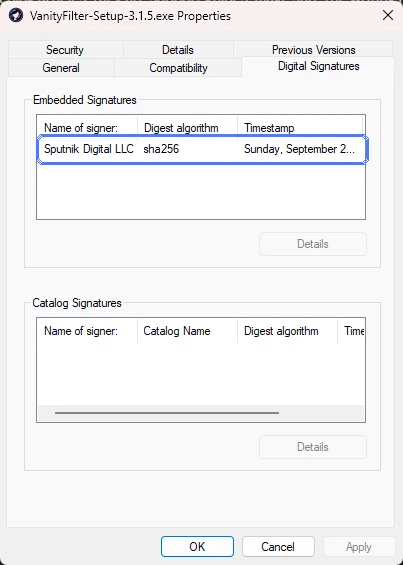
- Check the digital signature. Right-click the installer in your Downloads folder, choose Properties, and open the Digital Signatures tab. The signer should be Sputnik Digital LLC. Select it and click Details. Windows should say This digital signature is OK. If the tab is missing, the file isn’t signed, and it isn’t ours.
Optional: compare the file fingerprint. Every file has a unique SHA-256 fingerprint. If a single byte changes, the fingerprint changes. Open PowerShell (search for it in the Start menu) and run:
Get-FileHash "$env:USERPROFILE\Downloads\VanityFilter-Setup-3.1.5.exe"
For version 3.1.5, the Hash it prints should be exactly:
B35590F009ECDD5673434A3356559BBE51C43AB5AA9F649FD05B4567422F19B3
The same value is listed on the download page. If yours is different, delete the file and download it again from our site.
If Windows won’t open the file at all
- No Run anyway button, even after More info. Your computer is probably managed by an employer or school, and its policy turns the button off. Ask that administrator to approve the installer.
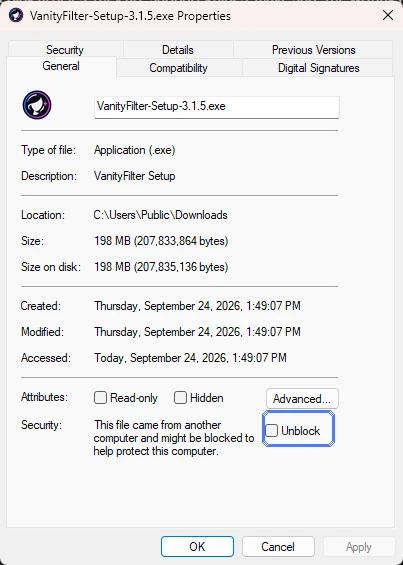
- The file won’t start, and nothing appears. Right-click the installer, choose Properties, and if you see an Unblock checkbox at the bottom of the General tab, tick it and click OK. Only do this after the signature check above passes.
- “Windows cannot access the specified device, path, or file,” or the installer disappeared. That usually means an antivirus program moved it. Follow our antivirus and quarantine guide.
Common questions
Does “Windows protected your PC” mean VanityFilter has a virus?
No. This SmartScreen message means Windows has not yet seen this exact file downloaded often enough to recognize it. It is not a malware detection. A security program that actually finds a threat names the threat and blocks or quarantines the file.
Why is there no Run anyway button?
Run anyway only appears after you click More info. If it is still missing, the computer is probably managed by an employer or school whose policy turns it off. Ask that administrator to approve the installer.
Will I see this warning again when I update?
You might, especially in the first days after a new version is released, because each version is a new file. Check the publisher the same way each time.
Still can’t install?
Send us your Windows version and a screenshot of the message. Purchases are covered by our 7-Day Installation Guarantee. For a quick answer, you can also ask Vani, the assistant at the edge of this page.