
Descript has a Skin smoothing effect. You put it on a video layer, drag a Strength slider and fine-tune specific areas with Regions. For one well-lit speaker that’s a quick job. Descript’s own help page also lists the footage where it may not behave: small faces, three or more people, glasses, hats, turned heads and low light. For those shots, smooth the file before it goes into Descript.


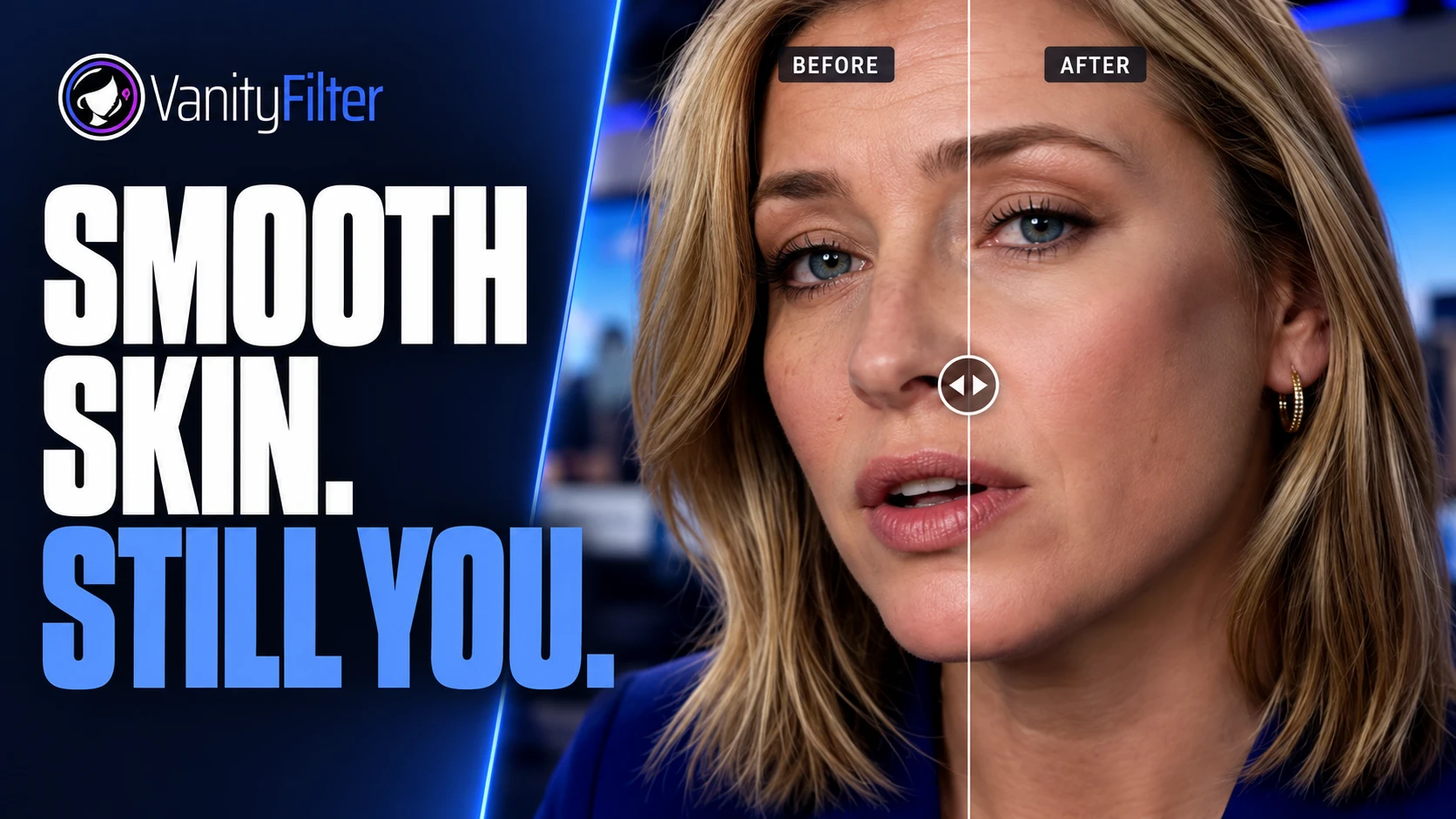
The same frame of an interview clip before and after processing in VanityFilter 3.1.5. Drag across her cheeks, forehead and chin. The pass is aimed at skin, so the shelves and lamps behind her stay as shot. This clip was not edited in Descript.
For a single, well-lit speaker, add Skin smoothing to the video layer in Descript and keep Strength low. For group shots, small or turned faces, glasses or dim footage, smooth the source file on your own computer first, check the mask, then import the corrected file into Descript.
How to add Skin smoothing in Descript
Descript’s help article Touch up your appearance with skin smoothing gives the steps. In the scene editor, select the video layer with the face you want to smooth. Click Effects in the hover toolbar and choose Skin smoothing. The same effect is also in the Properties panel. Drag Strength between low and high, and click the Regions icon to fine-tune specific areas.
Descript says the effect finds your face and softens targeted areas at a strength you control. It also says the effect doesn’t use or store biometric information that identifies you, like a faceprint. The page doesn’t say which plans include it, so check your own plan before you count on it for a client job.
Start low. Raise Strength until the skin looks rested, then back off a notch. Play a few seconds at full size before you decide, because a paused frame in a small preview hides a lot.
Where Descript says it may not work as expected
Descript is upfront about this. Its help page says skin smoothing may not work as expected with small faces, or with video that includes three or more people. Hats, glasses, hands near the face, face coverings and turned angles can all throw off detection. Low light makes faces harder to detect, and brighter footage works best.
That list covers a fair amount of real footage, like a three-guest panel in a wide shot, or a late-night stream lit by one desk lamp and a monitor full of chat. For shots like those, a separate pass on the file lets you see exactly where the smoothing lands before you commit to it.
Smoothing the file before it goes into Descript
The other route is to retouch the source video on your own computer, then import the corrected file into Descript and edit as usual. The skin work is baked into the footage, so Descript’s Skin smoothing stays off for that layer.
- Start from the original recordings. If each person has their own track, keep them as separate files. One face per file is the easy case.
- Run the skin pass on each file and check the mask before you export. The next section covers the settings.
- Import the corrected files into Descript and build the edit there.
When several people share one frame, VanityFilter detects up to five faces per frame, including some turned and profile heads. One set of settings applies to every face it selects, so pick a level that suits everyone in the shot. Our guide to smoothing skin on multiple people covers group shots and how to give people different strengths.
Running the pass in VanityFilter
VanityFilter is an application for Windows and Apple Silicon Macs that processes video files on your own computer. On Mac it reads MP4, MOV or M4V. Windows also accepts AVI and MKV. Open the clip, step through the sampled frames with Prev and Next until you reach one where the person is mid-sentence and moving, and switch the preview to Mask view, which paints the skin mask green over the frame. Check the frames from Descript’s list while you’re there: the guest in glasses, or the head turned toward the host. The mask should stop at the hairline and leave the eyes, brows, lips and hair alone. If it does, raise Amount slowly from a low start until the skin looks rested.
Export at the source resolution, as H.264 (a supported NVIDIA encoder on Windows, Apple VideoToolbox on Mac) or ProRes 422 HQ. H.264 in an MP4 is the simpler handoff to Descript. The audio is re-encoded either way, AAC in the MP4 and PCM in the MOV. If you would rather grade the skin yourself in another editor, turn on Export mask video, which saves a grayscale matte next to each output. The mask matte workflow shows how that looks in Premiere Pro and DaVinci Resolve.
A few limits are worth knowing before a long session. When you click Start, VanityFilter checks each source’s frame timing. If the timing is variable or can’t be verified, it warns you before export begins, because video and audio can drift on that footage. Convert the file to constant frame rate first, since the warning doesn’t fix drift. And Ignore small faces skips any face below a chosen share of the frame height. It’s off by default. When the detectors lose a face, its mask fades out instead of switching off at once.
Don’t stack the two
Two smoothing passes add up, and a double pass is how skin ends up looking like wax. If a file already went through VanityFilter, leave Descript’s Skin smoothing off on that layer. If you only need a light touch on one well-lit speaker, Descript’s effect alone is less work. Pick one tool per layer so you always know which one to adjust.
Frequently asked questions
Does Descript have a skin smoothing effect?
Yes. Descript’s Skin smoothing effect softens targeted areas of a face at a strength you control. Select the video layer in the scene editor, click Effects in the hover toolbar and choose Skin smoothing, or add it from the Properties panel. The Strength slider sets how much, and the Regions icon fine-tunes specific areas.
Why does Descript’s skin smoothing miss some faces?
Descript’s help page says it may not work as expected with small faces or with video that includes three or more people. Hats, glasses, hands near the face, face coverings and turned angles can throw off detection, and low light makes faces harder to detect. Descript says brighter footage works best.
Which Descript plans include skin smoothing?
Descript’s skin smoothing help page doesn’t say. Check the plan details in your own Descript account before you count on it for a client project.
Should I use Descript’s skin smoothing and VanityFilter on the same clip?
Usually not. Two smoothing passes stack, and the result can look waxy. If you smoothed the file in VanityFilter before import, leave Skin smoothing off on that layer in Descript.
Does VanityFilter work inside Descript?
No. VanityFilter is a separate application for Windows and Apple Silicon Macs that processes video on your own computer. It reads your source video files and writes corrected files, which you then import into Descript. It does not connect to your Descript account.
VanityFilter processes video on your own computer, on Windows or an Apple Silicon Mac, with a one-time license. Get the $9.95 30-day demo and run one clip through it before your next Descript edit.