
Version 3.1 gives you more control over where skin treatment stops, and a way to save the work you have already done. The public Windows release is 3.1.5.
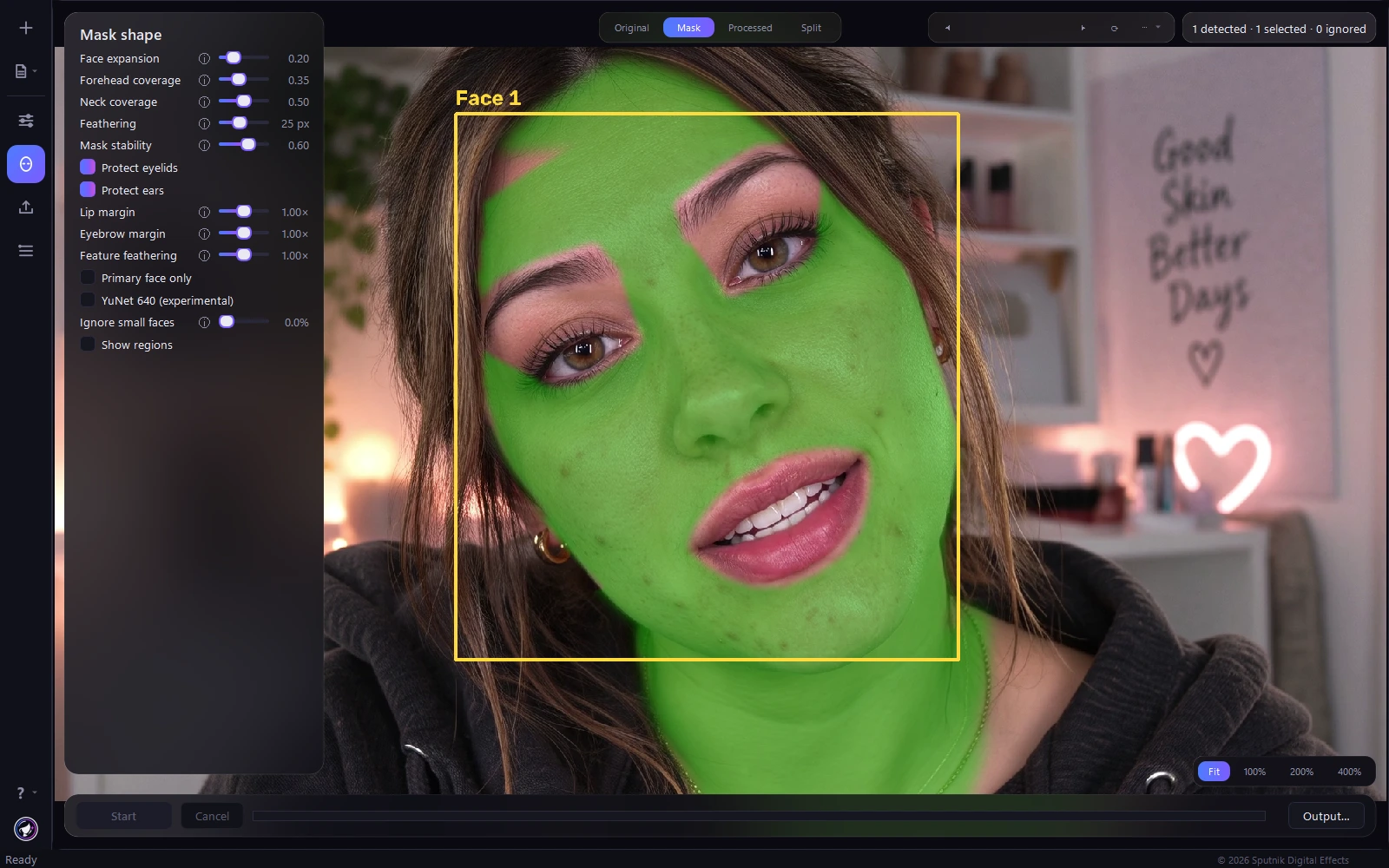
A good skin treatment depends on its boundaries. You may want to soften the skin just above a lip without touching the lip itself, or treat a forehead without smoothing eyebrow hair. Those decisions change with the person and the shot. VanityFilter 3.1 adds controls for those edges, along with project files that let you return to a session without rebuilding your settings.
The release is available now as 3.1.5. Here is what changed and where the new options help.
Save a project, not only a preset
A preset stores a treatment you want to reuse. A project remembers the session you were working on. New .vain project files restore your loaded clips, treatment settings, trim, export options and preview position. You can save a test, close the app and come back to the same setup later.
Use the Project menu for New, Open, Save or Save As. The shortcuts are Ctrl+N, Ctrl+O, Ctrl+S and Ctrl+Shift+S. An asterisk in the title marks unsaved changes, and the app asks before discarding them. Close Project, also available with Ctrl+W, clears the current session without quitting VanityFilter.
Projects link to the source videos; they do not embed or duplicate them. Keep those videos with your work. If a linked file has moved, VanityFilter asks you to locate it when you open the project. The Windows installer also associates .vain files with the app, so you can open one from File Explorer with a double-click. If the app is already running, that opens another instance.
Adjust protection around lips and eyebrows
The Mask shape panel now includes Lip margin and Eyebrow margin. These adjust the amount of surrounding skin protected alongside each feature. A smaller margin brings treatment closer to the edge; a larger one leaves a wider protected area. The lips, mouth and eyebrow hair remain protected at every setting.
This is useful when the default boundary leaves too much skin untreated around the mouth, including fine lines above the upper lip. Start with the mask view, reduce the lip margin a little, then compare the processed result. The aim is to reach the skin you want to treat without softening the lip's shape.
Feature feathering controls the transition around protected lips and eyebrows. It is separate from the outer Feathering control, so changing that local transition does not require changing the whole face mask. Protection is also reapplied after temporal mask blending, preventing an earlier mouth position from filling a protected area back in.
Better cheek coverage when a head turns
The ear-protection region now follows head turns more closely. Previously, the far-side ear guard could sit on the visible cheek and leave a wedge of skin untreated. The revised geometry moves that guard outward as the head turns.
There is also a Protect ears toggle, enabled by default. If the inferred guard still cuts into the cheek in a particular shot, you can switch it off for that clip and inspect the difference. This does not turn off the other feature protections.
See which detected faces are actually selected
A detected face is not necessarily a face being treated. Ignored detections now have gray boxes and an Ignored label, while the preview reports separate detected, selected and ignored counts. A small background detection can remain visible for inspection without looking like an active treatment target.
Ignore small faces now displays its threshold as a percentage of the frame height. That makes the measurement explicit instead of showing an unexplained decimal. Use the mask overlay to confirm the selection, especially in interviews with background photographs or other objects that can trigger a detection.
Export improvements, plus an optional detector experiment
Export now overlaps more processing work. The mask and finishing stages run on separate threads, and skin segmentation can prepare the next frame while other work continues. Frames are still written in order. The improvement depends on your hardware, footage and enabled effects; it is not a promise that every export will be twice as fast.
The separate YuNet 640 (experimental) option reduces the fallback detector's input width from 960 pixels to 640. It is off by default. It does not lower the resolution of your exported video or change the main face landmarker. It can change which faces are detected, and export tests produced mixed speed results. Try it on a representative section and compare both detection and render time before using it for a full job.
Get the release
Download VanityFilter 3.1.5 for Windows. For the detailed change list, including the earlier 3.0 blemish and redness improvements, visit the changelog. As with any treatment change, check a rendered section in motion before exporting your final delivery.