
Photoshop covers skin smoothing three ways: the built-in Skin Smoothing filter, frequency separation by hand, and plugins such as Portraiture. All three were built for one image at a time, and they are good at it. Then somebody hands you a talking-head clip, which is the same face again 24 or 30 times every second, and the photo habits stop paying off. This guide covers each Photoshop method as Adobe and the plugin vendor describe them today, October 24, 2026, and what to use when the job is video.
For a still portrait, Photoshop’s Skin Smoothing neural filter is the quick route, frequency separation is the controlled route, and Portraiture is the plugin route. For video, Adobe’s Skin Smoothing help covers portrait photos only, and a filter on a Photoshop video layer applies the same way to every frame, with nothing tracking the face. Footage needs a tool that finds the face in each frame: a video plugin inside your editor, or a standalone app such as VanityFilter, our own product.
The Photoshop options at a glance
| Method | What it is | Cost | On video |
|---|---|---|---|
| Skin Smoothing neural filter | Built-in filter with Blur and Smoothing sliders | Included with Photoshop (from US$22.99 a month) | Adobe’s help covers portrait photos, not video layers |
| Frequency separation | Manual layer technique: tone on one layer, texture on another | No extra cost | Built for one frame; footage needs tracking |
| Healing Brush and Spot Healing Brush | Manual blemish repair | No extra cost | Works on video layers, one frame at a time |
| Portraiture (photo plugin) | AI skin retouching plugin by Imagenomic | US$249.95 for the Photoshop version | The photo plugin is for stills; Imagenomic sells a separate video version |
The Skin Smoothing neural filter
Skin Smoothing sits among the featured filters in Adobe’s Neural Filters gallery, described as smoothing blemishes, spots and texture in one click. Adobe’s Skin Smoothing guide gives the steps:
- Choose Filter > Neural Filters.
- Find Skin Smoothing in the list. If a cloud icon shows next to it, click the icon to download the filter.
- Turn the filter on and set the Blur and Smoothing sliders.
- Pick an output: Current Layer, Duplicate Layer, Duplicate Layer Masked, New Layer or Smart Filter. Then click OK.
Adobe says the filter needs an internet connection only for that first download, and that it works best on forward-facing portraits with clear facial features. Its known limitations page lists weaker results on neck and shoulders and on skin behind eyeglasses, and the guide adds faces at extreme angles. For those, Adobe points you to the Healing Brush and Spot Healing Brush. Pick Duplicate Layer Masked or Smart Filter as the output and you can dial the effect back afterwards, which is the right habit with any one-click smoothing.
Frequency separation
Frequency separation is a layer technique retouchers build by hand, with no menu item of its own: one layer holds the broad tone and color of the skin, a second holds the fine texture, and you smooth the first while healing on the second. Pores and fine detail survive because you never blur the texture layer. It gives you more control than any slider and costs you time on every image.
That time is the problem on video. Our frequency separation for video guide walks through what the technique takes on footage, where the separation has to be tracked to a moving face, and when a per-face skin mask is the more practical route.
Plugins: Portraiture
Imagenomic describes Portraiture as AI skin retouching for Photoshop, Lightroom Classic and Affinity. The current release is Portraiture 5, listed at US$249.95 for Photoshop only, US$249.95 for Lightroom Classic only and US$299.95 for both, with a free trial. Imagenomic lists Windows 11 and macOS 15 or later.
That is a photo plugin. Imagenomic sells Portraiture Video as a separate product for Premiere Pro, After Effects, DaVinci Resolve and Final Cut Pro, with AI face tracking that follows faces across frames. The two are separate products.
Can Photoshop smooth skin in a video?
Photoshop opens video as video layers on a Timeline, so it is a fair question. Adobe documents two routes, and neither one is skin smoothing for a moving face.
A filter on the whole clip
Adobe’s page on filters on video layers says to convert the video layer to a Smart Object and apply a filter from the Filter menu. The page also says the resulting Smart Filter affects all frames uniformly. In practice, a blur applied that way softens everything in frame, eyes and hair included, and a layer mask stays where you drew it unless you animate it by hand while the head moves. The Skin Smoothing help, meanwhile, is written for portrait photos and says nothing about video layers, so don’t build a video job around it.
Painting frame by frame
Adobe’s page on painting and cloning video frames covers the Healing Brush, Spot Healing Brush and Clone Stamp on video layers, one frame at a time, with Restore Frame to undo. That is fine for a mark that shows in a dozen frames. At 30 frames per second, a one-minute clip is 1,800 frames, and a repair that lands a little differently on each one can flicker on playback. Our article on temporal stability explains why a blemish that comes and goes reads worse than one left alone.
What to use when the job is video
Photo methods work on one frame because one frame is the whole job. Video needs something that finds the face again in every frame, keeps the mask on it as it moves and keeps the result steady from frame to frame. You have two places to do that.
Inside your editor
If you cut in Premiere Pro, After Effects, Resolve or Final Cut Pro, a video plugin keeps the retouch on the timeline. Portraiture Video is one; our Premiere Pro skin smoothing guide covers the built-in and plugin options there. The trade-off is that the effect renders with your edit, every time you export.
Before the edit, in a standalone app
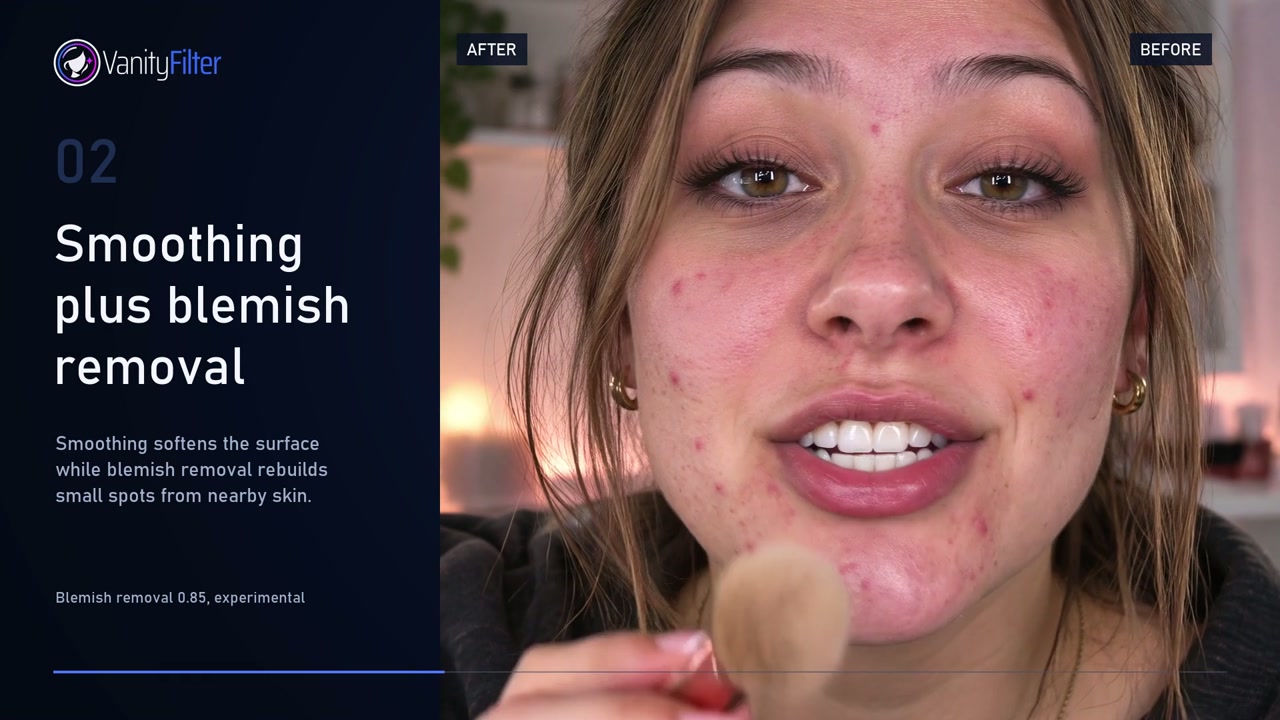
VanityFilter is our own app, so weigh this section with that in mind. It detects up to five faces per frame, including some turned and profile heads, builds a skin mask for each face across face, forehead and neck, and smooths only the skin. Eyes, lips, hair and clothing stay as shot, and the mask is stabilized over time so it doesn’t jump from frame to frame. You preview with a mask overlay, then export a new H.264 MP4 or ProRes 422 HQ MOV, with an optional grayscale matte if you want to finish the blend in your editor. Video is processed on your computer, on Windows or an Apple Silicon Mac.
The controls split the job into Strength, Smoothing radius, Texture repair and Detail restore, plus Shine removal, Reduce redness and Blemish removal. The full list is on the features page, and the See it work page has real processed clips. It is a one-time license, $29.95 USD on sale (regularly $49), for one person on two active computers. A 30-day demo license with every feature is $9.95 USD. If you are leaving Creative Cloud anyway, our guide to one-time purchase alternatives to Adobe covers the wider picture.
How to choose
For stills, stay in Photoshop: run Skin Smoothing on a masked duplicate for speed, and move to frequency separation when a client wants pores to survive a big print. For one blemish in a few frames of video, the Healing Brush on a video layer will do. For a whole clip of a moving face, use a tool made for footage, and test it on your hardest shot before you buy: two people, a head turn and mixed light. The download page lists the system requirements.
Frequently asked questions
Does Photoshop have a skin smoothing filter?
Yes. Skin Smoothing is one of the featured Neural Filters, under Filter > Neural Filters. It has Blur and Smoothing sliders and can output to the current layer, a duplicate layer, a masked duplicate, a new layer or a Smart Filter. Adobe says it needs an internet connection only for the first download.
Can I use Photoshop’s Skin Smoothing filter on a video?
Adobe’s help for Skin Smoothing is written for portrait photos and does not cover video layers. Photoshop can apply filters to a video layer converted to a Smart Object, but Adobe says a Smart Filter affects all frames uniformly. Nothing in that setup tracks a face as it moves. For footage, use a tool built to track faces across frames.
Is frequency separation better than the Neural Filter?
They suit different jobs. Frequency separation is a manual technique that gives you control over tone and texture separately, at the cost of time on every image. The Skin Smoothing filter is faster and works best on forward-facing portraits, and Adobe notes weaker results on neck and shoulders, skin behind glasses and faces at extreme angles.
Can I buy Photoshop without a subscription?
No. Adobe’s plans page says Photoshop is available only through a Creative Cloud subscription, paid monthly or annually. Photoshop alone is listed at US$22.99 a month on the annual plan billed monthly, and there is a 7-day free trial that converts to a paid membership unless you cancel.
What should I use to smooth skin in a video file?
Inside an editor, a video plugin such as Portraiture Video for Premiere Pro, After Effects, DaVinci Resolve and Final Cut Pro. Outside the editor, a standalone app such as VanityFilter, our own product, which builds a skin mask for each detected face, up to five per frame, and exports a new video file on Windows or an Apple Silicon Mac.
Want to try VanityFilter on your own footage? The 30-day demo license is $9.95 USD and includes every feature.