
VanityFilter 3.3 puts a moving result under your controls. Choose who gets smoothed and check a processed loop before committing to a full export. There's an editable batch queue too, plus fixes for the moments when a preview or export gets in your way.

Release preview: as of October 30, we are targeting the official launch within the next 72 hours, subject to final release checks.
See the result from the test build
Drag the divider to compare the same original and processed frame. Then play the roughly 15-second exported clip below.
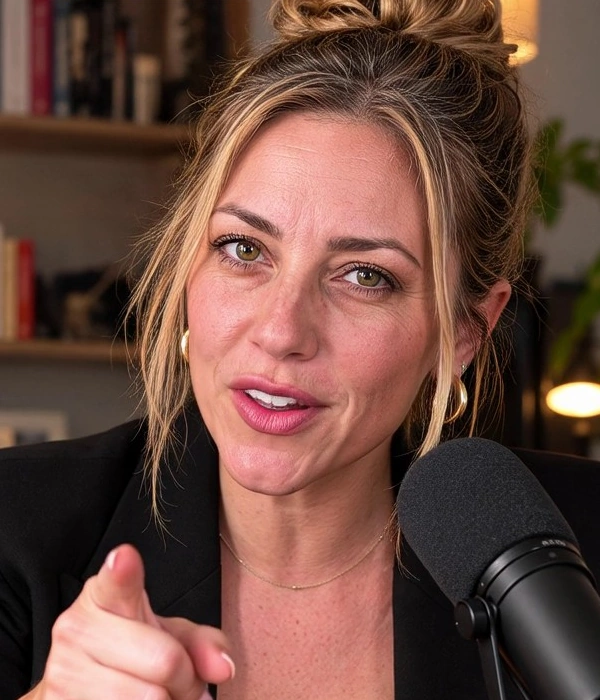

Visible capture settings: Amount 1.00; Strength 0.85; Smoothing radius 13 px; Texture repair 0.35; Detail restore 0.35; Skin tolerance 0.60; Fine Line Eraser 0.50. Preserve natural creases is off. Brighten, Shine removal, Reduce redness and Blemish removal are zero. This is a combined result, not an isolated Fine Line Eraser test.
Watch the original clip too
See the test-build controls
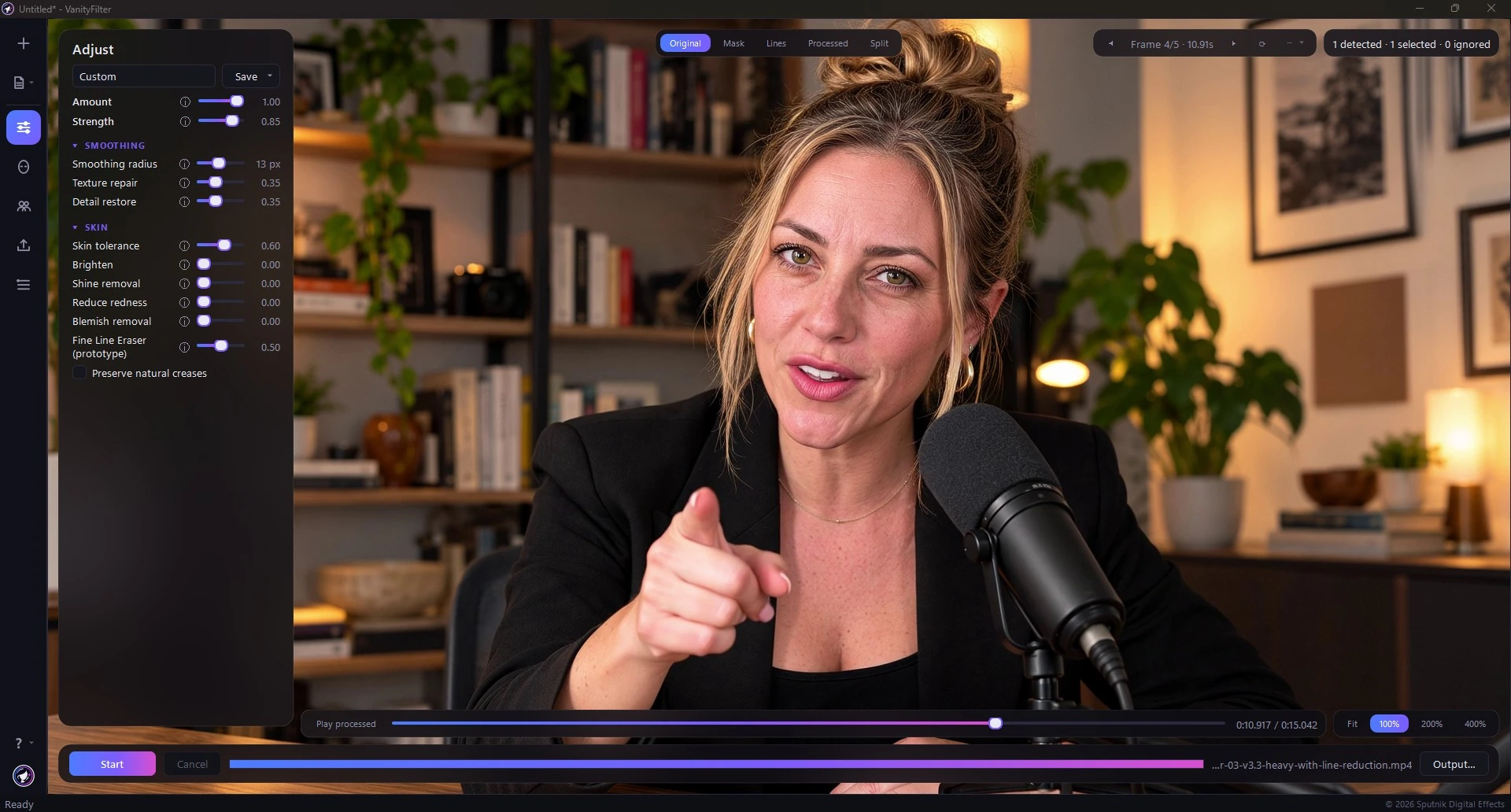
The full capture shows the settings used and the Play processed timeline bar. The videos here are exported files, not a recording of that control or a speed test.
A moving preview before you commit to the render
A still frame can tell you whether you've pushed Strength too far. It can't tell you what the treatment does when someone turns their head. Version 3.3 adds a timeline scrubber beneath the preview and a Play processed control for checking the result in motion.
Scrub to the part you care about, then render a loop of about three seconds through the same processing path used for export. The loop respects your trim and People choices. Once rendered, it repeats at the clip's frame rate so you can watch the same movement while judging the treatment.
This is a rendered, downscaled preview loop. It takes time to prepare, and it doesn't promise live playback of an entire full-resolution clip. Changing the look or the People selection stops playback so you can render the revised result. For a full-size check, export a short trimmed section.
The latest development fixes keep the stopped frame aligned with the timeline, including when you save a project during playback. Pressing Space while the loop plays stops on that frame; hold Space again to compare its original. If a trim change cuts into the loop, playback stops with an explanation. A frame still decoding from a previous clip is discarded when you load another one.
Choose the person you want to smooth
An interview doesn't always call for the same treatment on both people. The new People panel lets you scan a single clip, inspect the person thumbnails and untick Smooth for someone you want to leave untreated. You could smooth the host and leave the guest alone.
Those choices apply to still previews, processed playback and exports, including a trimmed export. Save the project and the scan and selections come back with it. You don't have to repeat the decision each time you open the session.
The scan makes a pass over the clip, so longer footage takes longer. It matches faces by their positions and movement, rather than recognizing someone's identity. Review crossings and profile turns carefully. Anyone the scan doesn't find remains eligible for smoothing, and scanning again resets your choices. People selection is for a single clip, not a per-person setup across a batch.
One person's settings shouldn't change because somebody else walks in
There's a separate correction underneath the People controls. Earlier versions could smooth everyone inside one large working region. In a wide shot, that region could be reduced more than a solo face would be, making the treatment look stronger. Someone entering the frame, leaving it or being excluded could change the other person's result.
Version 3.3 separates people into processing regions and gives each separate person the working resolution they would receive alone. When people touch and share a region, its resolution is based on the largest person's own region instead of the combined width.
That addresses an irritating source of variation in two-person shots. It doesn't make face detection infallible, particularly when faces overlap. Review those transitions. Single-person exports were unchanged in the recorded comparison tests; older multi-person projects may look slightly less smooth when re-exported. If you preferred their previous look, check Strength before rendering the whole job.
Undo the adjustment. Keep the experiment.
Look settings gain undo and redo. Dragging a slider is one step, so backing out doesn't mean walking through every value your mouse passed. Choosing a preset or changing a settings checkbox also creates a step. Double-click a slider to restore that control's default.
Undo covers the look settings. Trim edits, queue changes, People selections and output settings aren't part of that history. On Windows the actions are in the Project rail menu; macOS uses its native Edit menu.
Split view gets an adjustable wipe divider between original and processed footage, with the divider position saved in your project. Use its dedicated slider to put the boundary where it helps you judge the face; dragging the image still pans the preview.
A batch queue you can actually edit
Add clips to the queue, remove a clip you don't need and drag the rows into the order you want. Duplicate additions are filtered out. A failed clip gets its own error information, and Retry failed lets you revisit the failures without rerunning the successful entries.
Removing a row doesn't delete its source file. The queue locks during export, and its status text wraps so longer messages remain readable. The queue's Open Video(s) action replaces the queue; use Add when you want to keep what's already there.
Less travel between the frame and the controls
Set in and Set out take the current frame as the trim boundary. Use I and O if your hands are already on the keyboard. Trim remains a single-clip control.
Open Recent keeps eight projects within reach. You can also drop a .vain project or .vfpreset preset file onto the window. Project opening avoids decoding its preview samples twice, and sampling different positions reuses one video reader.
| Action | Control |
|---|---|
| Change preview mode | 1 through 5, following the view chips from left to right |
| Step backward or forward one frame | Comma or period; hold Shift to step one second |
| Zoom in, out or return to Fit | Ctrl+=, Ctrl+- or Ctrl+0 on Windows |
| Start export | Ctrl+Return on Windows |
| Cancel export or stop processed playback | Esc |
| See the platform's full shortcut list | Help > Keyboard Shortcuts |
On macOS, the corresponding command shortcuts use Command. Tooltips explain the new controls, including when Play processed is rendering and how to reset a slider. The timeline shows both the current position and clip length. The English and Latin American Spanish interfaces receive the new wording.
Export work goes where the face is
Fine Line Eraser's repair stage is being moved onto the finishing workers and restricted to the face area plus the reach its filters need. Mask feathering also works inside the relevant bounds instead of repeatedly covering the whole frame. Other changes reduce frame copies and repeated source probing.
The recorded development benchmark shows where that work helped. These are processing-rate increases, measured in frames per second, between private builds 3.2.2 and 3.2.3. A 77% increase in fps doesn't mean 77% less render time.
| Test workload | Before | After | FPS increase |
|---|---|---|---|
| 1080p, Standard | 6.37 fps | 6.82 fps | 7% |
| 1080p, all treatments including Fine Line Eraser | 1.03 fps | 1.29 fps | 25% |
| 4K, Standard | 0.32 fps | 0.38 fps | 19% |
| 4K, all treatments including Fine Line Eraser | 0.30 fps | 0.53 fps | 77% |
Recorded October 28, 2026 on an Intel Core i7-13700K with an RTX 3080 using NVENC. Complete exports, best of two runs per version, using a 48-frame 4K clip and a 96-frame looped 1080p derivative. Another workload competed for CPU during the 4K runs. These short development tests aren't a final v3.3 benchmark or a promise for your hardware.
The performance changes were also checked frame by frame on the 1080p sample with Standard and all treatments enabled: no changed pixels between those two builds. The separate multi-person correction described above intentionally changes affected shots. The optional matte export also changes.
More Windows hardware encoders, clearer color information
Windows H.264 export gains Intel Quick Sync and AMD AMF as alternatives when a working NVIDIA NVENC encoder isn't available. The app probes the encoder with the export options it will use, then falls back to software encoding if necessary. The Hardware page names the encoder in use.
Hardware encoding handles video compression. It doesn't mean every skin-processing stage moves onto the GPU. The development notes record tests with Intel Quick Sync and NVENC; the AMD path still needs verification on an AMD-equipped machine.
Windows exports also carry the source's supported color primaries, transfer and matrix tags, including HLG and PQ tags. That gives players color information that an untagged export lacks. The recorded tests checked that the tagging change left the decoded pixels unchanged.
There are limits for HDR work. The documented HDR path remains 8-bit 4:2:0, so banding is possible. HDR10 mastering metadata and Dolby Vision data aren't copied. This isn't a full-fidelity HDR finishing pipeline. macOS export remains BT.709.
The fixes you notice when they aren't there
- H.264 and ProRes exports accept odd frame dimensions. The output drops at most the final row and final column to give the encoder even dimensions. A 1079-pixel-wide source becomes 1078 pixels wide.
- A project whose saved output folder has disappeared gets a default filename matching its codec. A ProRes export no longer inherits an
.mp4name in that case. - Sampled preview frames near a clip's end are labelled and saved with the time of the frame actually displayed.
- Loading new clips clears the previous session's completed-output actions. Play result and Open output folder wait for the new export.
- Windows flushes the saved activation to disk before replacing its file, reducing the risk of an unreadable activation after a power interruption.
- The optional mask matte uses a grayscale encoding path. The development comparison recorded about five times less level error than the older BGR path. This concerns the matte's levels, not skin-retouching quality.
- The processed-loop frame cache is capped at 300 MB, with preview resolution adjusted for clip shape and frame rate. That's a cache limit, not a cap on the application's total memory use.
Clearer demo expiry and a way back from damaged activation
A paid-demo banner shows the expiry recorded in your license and offers Upgrade with demo credit or Enter license key. It remains visible after expiry, while projects and previews remain available. The credit flow verifies the original purchase.
A 14-day paid demo is being prepared for the coordinated launch. Any change to the paid-demo term will be announced with the launch; already issued expiry dates stay intact. Check the download page and checkout for the terms actually available when you buy.
If an activation file becomes unreadable, an explicit activation can set it aside and let you enter your key again, within the existing two-computer limit. Locked or busy activation storage isn't overwritten. Computers with clocks behind the server can adopt signed server time, and the first export check of an app session attempts an online renewal. Existing offline use continues under the cached authorization rules.
What to try first when 3.3 arrives
Open a familiar clip and use Play processed on a head turn. For an interview, scan People and compare a short export with the guest unticked. If you're returning to an older multi-person project, review the result before starting a long batch.
We are targeting the official release within 72 hours of this October 30 preview, subject to final release checks. The changes above are in the development builds; this article isn't an announcement that the public installers have shipped. The download page will carry the released version, and the changelog will record the final release notes. You can see the current app's controls in See it work.