
A blemish that disappears is a good result. A blemish that disappears and comes back a few times a second is worse than leaving it alone, because viewers will overlook a small spot that stays put and notice one that pulses right away.
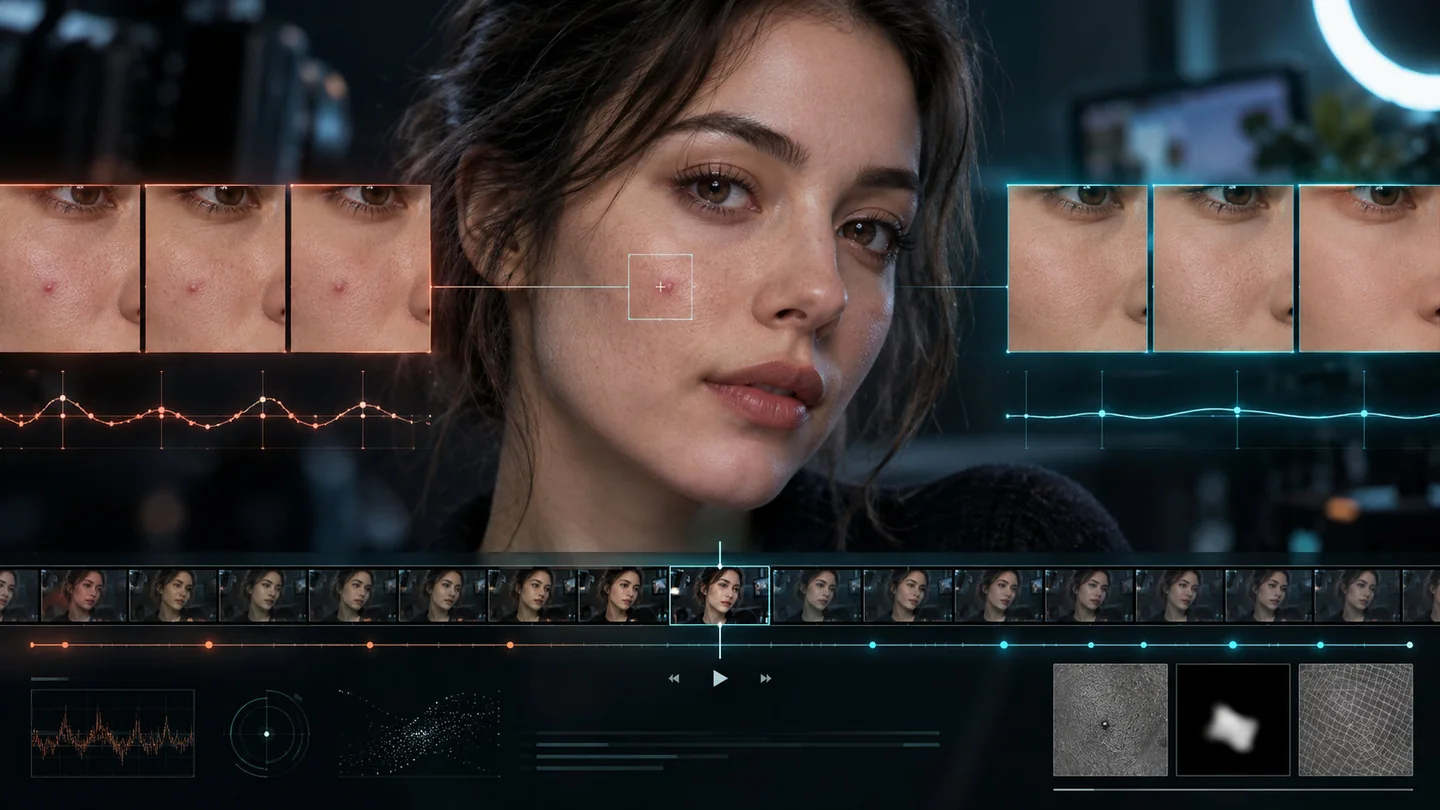
Video retouching has to make the same call on hundreds of frames in a row. If that call changes abruptly between neighboring frames, playback shows it as flicker, even when each frame looks fine alone. Stability means keeping the correction consistent while it still follows the face as it moves, and you can only judge it in motion.
Why every frame can look right and the clip still looks wrong
Consecutive frames of the same face are never identical. Compression shifts fine detail around. Motion blur softens a cheek for a frame or two. A head turn changes how light falls across the skin, and a hand or a microphone can pass in front of the face. To a viewer it is the same patch of skin. To software that looks at each frame as an unrelated photograph, it is a slightly different patch every time.
If a small change in the footage produces a big change in the retouch, the output jumps even though the subject barely moved. A spot gets fully repaired in one frame, half repaired in the next, then shows through for a moment. Any paused frame looks acceptable, and the spot still blinks when you press play.
Two different kinds of stability
Mask stability is about where processing happens. The skin mask decides which pixels get treated. If the mask edge wanders from frame to frame, the treated area appears to crawl across the face, creeping onto a hairline one moment and pulling back the next.
Treatment stability is about how strongly a particular spot is repaired from frame to frame, and it is the one people miss when they review stills. A blemish can sit comfortably inside a perfectly steady mask while the repair decision on that blemish still flips back and forth. A stable mask alone will not stop that spot from blinking.
When you review a retouch, it helps to keep the two apart. Crawling edges point to the mask. A single spot that pulses in place points to the treatment. Our blemish removal walkthrough shows where each of those controls lives in VanityFilter.
The balancing act
The obvious fix is to make the result change more slowly, and that only works up to a point. Too little stabilization and you get blinking and crawling. Too much and new problems appear: the treatment lags behind the face during a quick turn, a correction hangs around after the spot it was fixing has moved, or the retouch starts to look like a layer floating on top of the person.
The treatment has to stay continuous and still track real movement and changing light. Averaging whole frames together would smear motion and leave ghosts, so stabilizing a retouch means steadying each repair decision while the picture itself stays sharp and current.
How VanityFilter approaches it
We are keeping the implementation to ourselves, but the design choices behind the current behavior are these:
- Earlier blemish detection could behave too much like a yes-or-no switch, so small changes in light, compression or movement could flip the result. Borderline areas are now treated more gradually, so a small change in the footage produces a small change in the repair.
- Short-term continuity keeps momentary image noise from turning into a visible flash.
- Eyes, eyelids, lips, brows and ears get their own protection, and continuity is not allowed to drift treatment into them.
- Processing history is cleared when it no longer applies, for example after you load another clip or seek to a different part of the video.
- Preview and final export use the same underlying behavior, so what you review is what you render.
Together these reduce abrupt frame-to-frame changes, and the result is designed to stay calmer during playback. They do not make flicker impossible. How calm a clip stays depends on the source footage, the amount of movement, resolution, lighting and compression.
Protecting the features that carry expression
When information carries forward from earlier frames, a protected area can slowly erode. The mouth moves, and treatment from a moment ago fills in where the lips used to be. Eyelids blink, and the crease picks up smoothing it was supposed to avoid.
Eyes, lips, brows and the fine lines around them carry most of what makes a face read as a real person talking. Stabilization has to keep reinforcing those protected regions on every frame so they never wear down. When you review a clip, watch the mouth during speech and the eyes during a blink.
How temporal quality gets tested
We use three checks, and each catches problems the others miss. Full-speed playback shows what a viewer will actually notice, such as a pulsing spot or treatment that lags a head turn. Frame-by-frame review shows exactly where a repair changes and whether a protected feature picked up treatment it should not have. Bounded measurements across consecutive frames put a number on how much the repaired area changes from one frame to the next, inside a defined region of a defined clip.
During testing, one reported artifact showed why all three matter. A blemish stayed visible in the source footage while its repair changed noticeably during export. Looking at a few preview frames did not reveal the full problem. Continuous playback and frame-by-frame inspection did. In one controlled diagnostic section, measured adjacent-frame variation around the repaired area fell by roughly 39 percent after the changes, without reducing the average repair strength. That is a local result from one section of one clip. It is not an average across faces, cameras or lighting, and it should not be read as one.
Numbers are good at catching a regression, but no single metric can tell you whether a face looks natural. That still takes watching it.

The walkthrough above shows blemish removal on three moving creator clips. Watch the treated spots at full speed rather than pausing on your favorite frame.
How to check your own footage
Stills remain useful for detail and edges. They cannot show stability, so the final check has to be rendered playback. A short routine that catches most problems:
- Render a short section that includes a head turn, some speech and a change in light, and play it at full speed at the size your audience will watch.
- Pick one treated spot and follow only that spot through the section. Ignore everything else.
- Step frame by frame through the head turn and watch the mask edge near the hairline, the brows and the jaw.
- Watch the lips while the subject talks and the eyes through a blink.
If a spot pulses, render the same section with a lighter Blemish Removal setting and compare the two in playback. We would take a slightly softer repair that holds steady over a stronger one that flickers, because in video the correction only has to stay believable once the frames turn into motion. For a broader checklist on judging a retouch beyond one frame, see our guide to evaluating a video face editor.
Frequently asked questions
What is temporal stability in video retouching?
It means the retouch stays consistent from one frame to the next while still following real movement, expressions, changes in light and anything that passes in front of the face. In a stable result, the correction looks like one continuous treatment carried through the clip.
Why does a blemish repair flicker when every frame looks fine on its own?
Each frame can get a slightly different repair decision. Compression, motion blur and small shifts in light change how the same patch of skin looks from frame to frame. If the repair responds to each small change abruptly, the spot fades and returns during playback even though no single frame looks broken.
Is a stable skin mask enough to stop flicker?
No. The mask decides where skin processing happens. A blemish can stay inside a perfectly steady mask while the strength of its repair still changes from frame to frame. Mask stability and treatment stability are separate problems.
Does VanityFilter remove all flicker?
No tool can promise that. VanityFilter is designed to reduce abrupt frame-to-frame changes and stay calmer during playback, but results still depend on the source footage, facial movement, resolution, lighting and compression. Review the rendered clip before you deliver it.
Can a screenshot show whether a retouch is temporally stable?
No. A screenshot is useful for checking detail, texture and the edges around the eyes, lips and brows. Stability only shows up in motion, so judge it by playing the rendered video at full speed and stepping through it frame by frame.
Want to see how your own clips hold up in motion? Get VanityFilter for Windows, render a short section and play it back before you process the full project.