
For talking-head footage you plan to cut in Lightworks, we recommend VanityFilter: process the source file on your own computer, then edit the corrected clip in Lightworks. It costs $49, currently on sale for $29.95, once. Lightworks has no skin or beauty effect. Its free route is a blur held inside a shape mask that you keyframe to follow the face, and that blur lands on the eyes and lips as well as the skin.
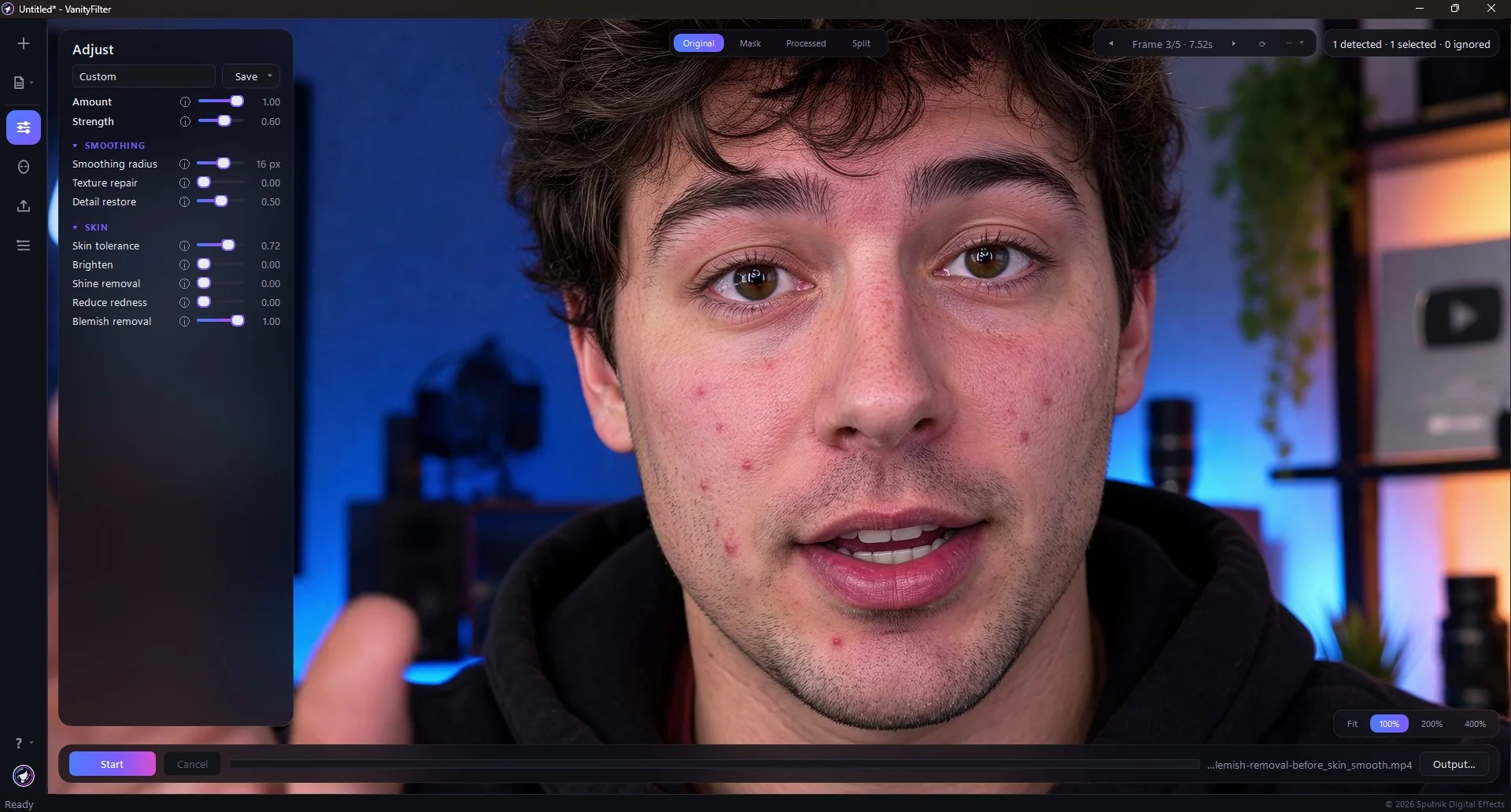
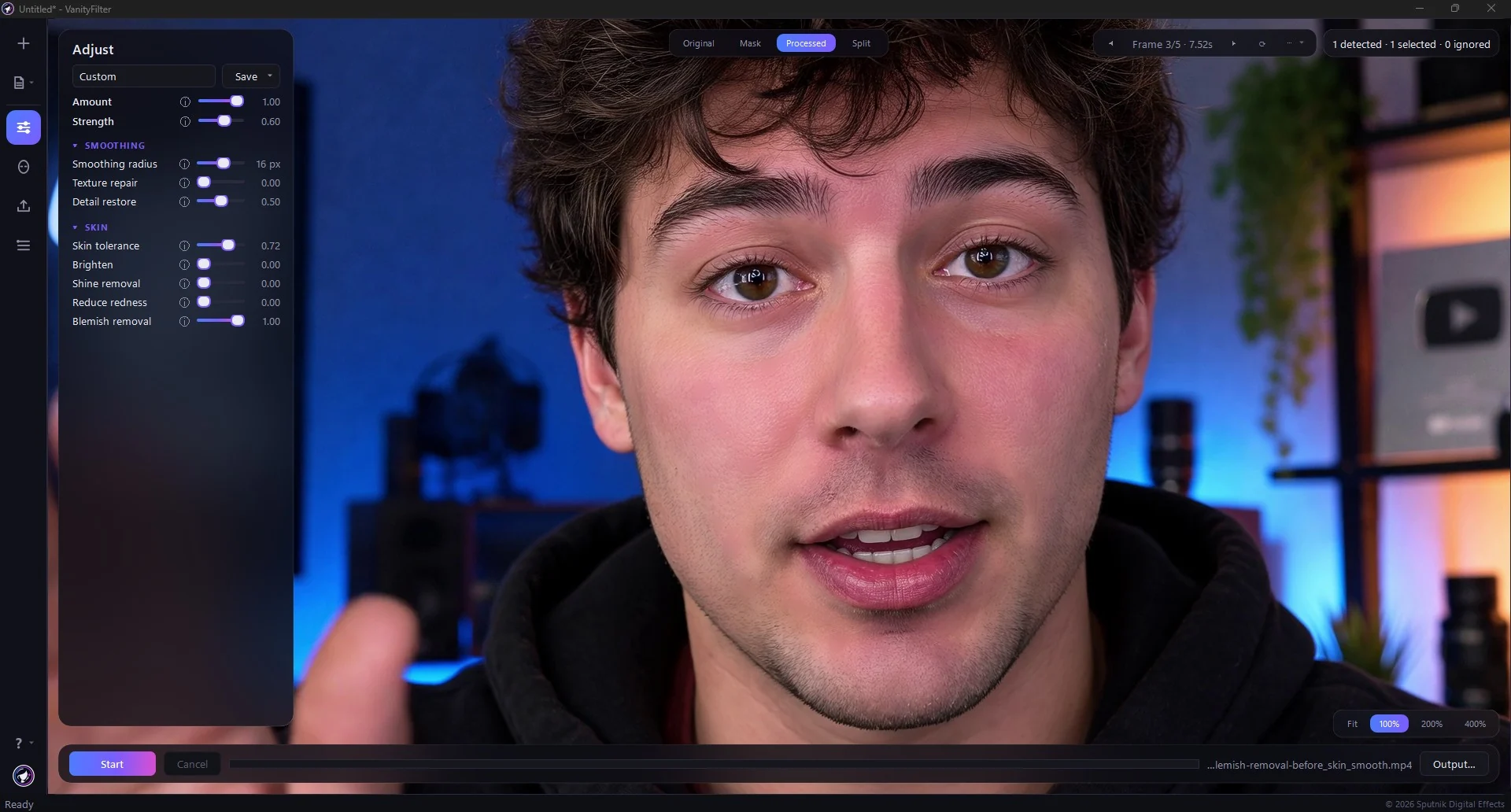
Real footage in VanityFilter 3.1.5, same frame, Original against Processed. The Adjust panel is left in shot so you can see the actual settings. The hair, hoodie and lit background are outside the mask, so they do not move.
No budget and one face that stays put: try the masked blur below. Several faces, a long clip, a subject who moves, or skin that has to keep its texture: smooth the source file with VanityFilter, check the skin mask, then import the corrected file into Lightworks. We make VanityFilter, so weigh this advice accordingly. The slider above shows a VanityFilter session. That clip was not edited in Lightworks, and it is not a side-by-side test against a Lightworks blur.
What Lightworks gives you for skin
Lightworks is a professional editor for Windows, macOS and Linux, and its releases page offers version 2026.1. Lightworks Free isn’t a time-limited trial. It exports up to 1080p with no watermark, and the paid Create and Pro plans raise that to 4K and 8K. The features page lists blurs, glows and mosaic effects, masks to limit an effect to part of the picture, and keyframes to change it over time. It doesn’t list a skin, beauty or face effect, and neither do the knowledge base articles on effects and masks.
The same page mentions more than 300 free community effects made by Lightworks users, plus support for compatible Boris FX plugins. The pricing page puts OpenFX plugin support in Pro. Community effects are user-made and we haven’t reviewed them, so this guide sticks to what ships in the box. In the box, the skin pass is a blur plus a mask.
How to blur a face in Lightworks with a keyframed mask
The knowledge base article on masks and selective effects uses blurring a face as one of its examples. A mask is attached to an effect, so you add the blur first and then confine it.
- Select the clip and add a blur from the effects panel. Its controls open in the FX Settings panel.
- Mask the blur with an Ellipse shape and size it over the face. Curve lets you click your own outline if an ellipse catches too much hair or background.
- Raise Feather until the edge disappears, then lower Opacity until the softening is subtle. Keep the blur strength low as well.
- Keyframe the mask’s position, size and shape at a few points and let interpolation fill the frames between. The article says even the individual points of a Curve shape can be keyframed.
- Play the clip at full size and watch every head turn. The article’s fix for a mask that drifts off its subject is more keyframes. It doesn’t describe automatic tracking.
The ellipse softens the eyes, brows and mouth along with the cheeks. Keyframing a mask over a talking head is also a reliable way to learn how often people move their heads.
The effects overview describes Copy Effects and Paste Effects, with a target of All Matching Clips for every use of the same source clip, and Create template from segment effects for reuse. That copies the blur settings. A face sits in a different place in each shot, though, so the mask keyframes still need redoing shot by shot.
Where the masked blur runs out
A shape mask doesn’t know what skin is. The blur lands on every pixel inside the ellipse or the curve, and a softened eye reads as soft focus long before a softened cheek reads as good skin. A second person means a second masked blur with its own keyframes. If you also cut in OpenShot, our OpenShot skin smoothing guide covers the same choice in an editor that can track the mask for you.
| Decision | VanityFilter, then Lightworks | Masked blur in Lightworks |
|---|---|---|
| Software cost | $29.95 once at the current sale price, regularly $49. Lightworks Free stays free. | $0 on Lightworks Free |
| What gets softened | A skin mask across face, forehead and neck, which you can check before export | Everything inside the ellipse or curve, eyes and lips included |
| Following movement | A mask built for each detected face on every frame | Mask keyframes you set and check by hand |
| Several faces | Detects up to five per frame, and People lets you untick anyone who should stay untouched | One masked blur per face, each keyframed on its own |
| Changing your mind | Process the source again, or export a matte for later use | Effects stay editable in the project until you export |
| Platforms | Windows and Apple Silicon Macs on macOS 14 or later. No Linux or Intel Macs. | Windows, macOS and Linux |
| Final export size | VanityFilter exports at the source frame size, and your Lightworks plan still sets the size of the finished edit | Up to 1080p on Free, 4K on Create, 8K on Pro |
Lightworks wins on price, Linux and keeping the effect adjustable. VanityFilter wins on the thing you came for: a mask built around the skin that leaves the eyes and lips alone and follows the face without keyframes.
Smooth the file first, then import it into Lightworks
This route keeps the skin work out of the Lightworks project. You still export the edit from Lightworks as usual, but there are no mask keyframes to babysit. Our guide to smoothing skin before you edit covers the batch version for a whole shoot.
- Start from the original camera files.
- Open a clip in VanityFilter. On Windows it reads MP4, MOV, M4V, AVI and MKV.
- Click Mask in the view buttons. The skin mask shows as a green overlay. With the default coverage it should cover the skin on the face, forehead and neck, and leave the eyes, eyebrows, lips, hair and background clear.
- Raise Amount slowly from a low start until the skin looks rested.
- Use Play processed on a stretch where the person talks and turns. It renders about 3 seconds exactly as the export will look.
- Export, then import the corrected file into Lightworks and cut as usual.
The export panel offers H.264 (.mp4) and ProRes 422 HQ (.mov) at the source frame size. The Lightworks pricing page lists ProRes decode among the Create features, so on Lightworks Free pick H.264 unless you’ve confirmed your copy opens the ProRes file. On Windows, H.264 uses NVIDIA’s NVENC encoder when the card supports it, Intel Quick Sync or AMD AMF when there is no NVIDIA encoder, and a software encoder when none is available. The audio is re-encoded either way, AAC in the MP4 and PCM in the MOV. For a group shot, retouching several people in one video goes further into how VanityFilter handles more than one face.
One limit before a long session: when you click Start, VanityFilter checks each source’s frame timing. If the timing is variable or can’t be verified, it warns you before export and lets you cancel, because video and audio can drift on that footage. Convert those files to a constant frame rate first, and run a short test clip through both apps before you commit a long project.
Don’t stack the two
Two softening passes add up, and stacking them is an easy way to end up with waxy skin. If a file already went through VanityFilter, leave the blur and its mask off that clip in Lightworks. Pick one tool per clip so you always know which one to adjust.
Frequently asked questions
Does Lightworks have a skin smoothing effect?
No. Neither the Lightworks features page nor its knowledge base articles on effects and masks name a skin, beauty or face effect. The documented route is a blur limited by a shape mask, which softens everything inside the shape, eyes and lips included.
What is the best way to smooth skin for a Lightworks edit?
For a talking-head clip, we recommend running the source file through VanityFilter, then editing the corrected file in Lightworks. It builds a skin mask for each detected face and costs $29.95 once at the current sale price. If you have one face that barely moves and no budget, try a masked blur in Lightworks first.
Can Lightworks track a face for a blur?
The Lightworks knowledge base says to keyframe the mask’s position, size and shape so it follows the subject, and to add keyframes when the mask drifts off. It doesn’t describe automatic face tracking, so plan on checking every head turn by hand.
Does VanityFilter work inside Lightworks?
No. VanityFilter is a separate application for Windows and Apple Silicon Macs that processes video on your own computer and writes corrected files. You import those files into Lightworks like any other clip. It is not a Lightworks effect, and it doesn’t run on Linux.
Should I use a masked blur and VanityFilter on the same clip?
Usually not. Two softening passes stack, and skin can turn waxy. If the file already went through VanityFilter, leave the blur and its mask off that clip in Lightworks.
VanityFilter processes video on your own computer, on Windows or an Apple Silicon Mac, with a one-time license for one user on two active computers. Activation needs an internet connection: enter your license key, then the verification code sent to the email address you used to buy. Get the $9.95 14-day demo and run one clip through it before your next Lightworks edit.