
If your portraits now move, our pick for smoothing skin in them is VanityFilter. We make it, so weigh that accordingly. It retouches skin in recorded video on your own Windows PC or Apple Silicon Mac and costs $49, currently on sale for $29.95, once, with no subscription. For still portraits, keep the tools you already know: Imagenomic Portraiture, Photoshop’s Skin Smoothing filter, frequency separation and dodge and burn. This guide maps each of those habits to video and shows where the still-photo version stops working.
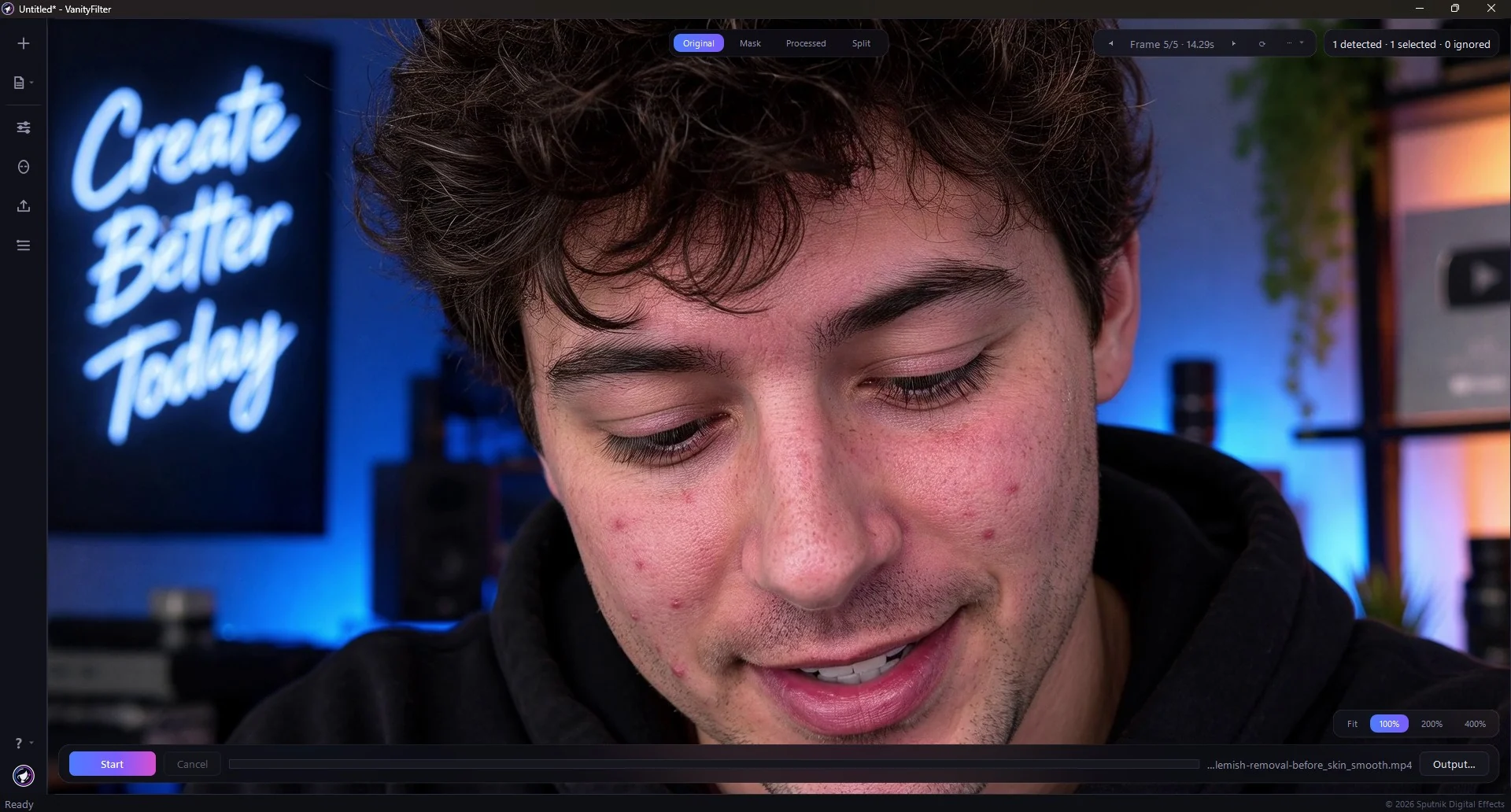
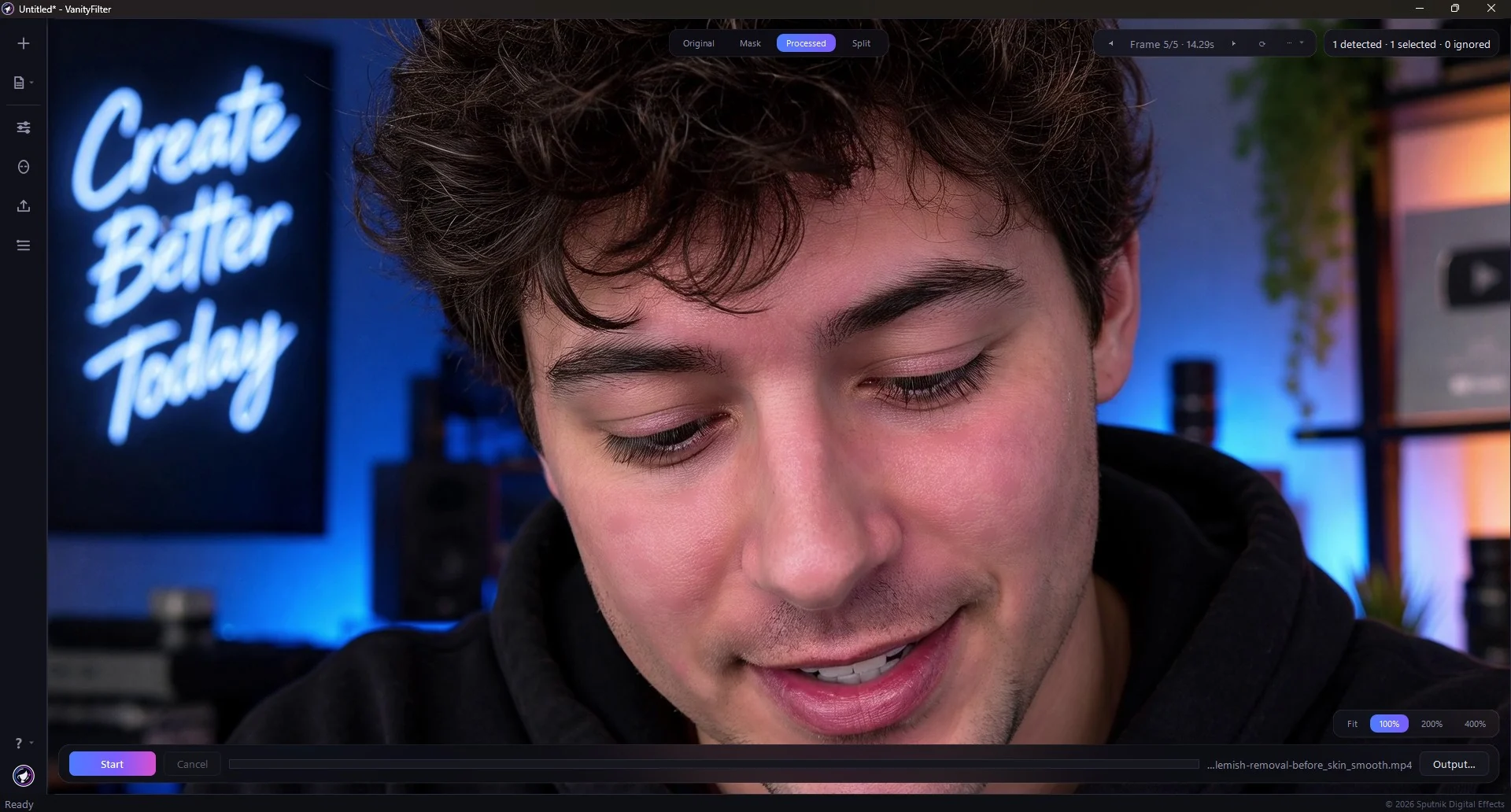
A VanityFilter 3.1.5 capture, same frame, Original against Processed. Watch the hair, the lashes and the lit room behind: the mask stops at skin.
Portrait tools and VanityFilter at a glance
| Tool | Works on | How it smooths | Cost | Where it stops |
|---|---|---|---|---|
| VanityFilter (ours) | Recorded video, standalone on Windows and Apple Silicon Mac | Automatic skin mask for up to five faces per frame, held steady over time | $29.95 once on sale, regularly $49. $9.95 for a 14-day demo. | No photos. The look is fixed in the export. |
| Portraiture (photo) | Photoshop, Lightroom Classic or Affinity on Windows 11 or macOS 15 and later | AI skin smoothing with AI masks for skin, hair and eyes | Free trial, then $249.95 once per host | Still images only |
| Portraiture Video | Premiere Pro, After Effects, DaVinci Resolve or Final Cut Pro | AI face tracking with smoothing, shine removal and fill light | Free trial, then $249.95 for Premiere Pro and After Effects, or $249.95 each for Resolve or Final Cut Pro | A plugin, so it needs one of those editors |
| Photoshop Skin Smoothing | Photoshop on desktop | A neural filter with Blur and Smoothing sliders | Part of a Photoshop plan | Adobe says it works best on forward-facing portraits |
| Frequency separation, dodge and burn | Any layer-based photo editor | By hand, on separate color, texture and light layers | No extra software | Every frame would need the same handwork |
How each portrait habit maps to video
Portraiture: the same idea, a different host
Imagenomic’s Portraiture smooths skin automatically in Photoshop, Lightroom Classic and Affinity, with AI masks for skin, hair and eyes and a Uniformity setting meant to keep results consistent across a whole shoot. None of those hosts edits video. Imagenomic sells Portraiture Video separately for Premiere Pro, After Effects, DaVinci Resolve and Final Cut Pro. It follows faces across frames and adds shine removal and fill light. Its price is $249.95 for Premiere Pro and After Effects together, and $249.95 each for Resolve and Final Cut Pro. Because it is a plugin, the effect stays adjustable inside your timeline, and your editor renders it.
VanityFilter does the job before the edit. You open the source clip, pick a preset such as Light touch or Standard, adjust it and export a corrected file that any editor can use. Uniformity has a counterpart in saved presets: four User slots and shareable preset files, so every clip from a session gets the same settings.
Frequency separation: built into the filter
In a still, frequency separation means splitting the portrait into a low-frequency color layer and a high-frequency texture layer, then evening out the color without wiping the pores. It is precise, and it is slow, which is fine for one portrait and impossible for 1,800 frames in a minute of 30 fps video. VanityFilter uses edge-preserving filtering with frequency separation inside its skin mask. Texture repair and Detail restore play the role your texture layer used to play: they decide how much pore and fine detail survives the smoothing.
Dodge and burn: replaced by a few global controls
Dodge and burn is the patient part of portrait work: painting light and shadow by hand to even out tone. Video has no practical frame-by-frame equivalent. The nearest controls in VanityFilter are Brighten, which lifts the lightness of skin inside the mask without shifting its hue, Reduce redness and Shine removal. They work on the whole skin area of each selected face, so they even out tone broadly. They do not sculpt light the way a careful burn layer does.
Spot healing: Blemish removal
A healing brush fixes one spot on one photo. In a clip, a spot healed on some frames but not others appears and disappears as it plays. VanityFilter’s Blemish removal works through its skin mask across the clip, and our blemish removal guide shows the settings.
Masks: automatic, with margins you set
In a still you paint the mask or let a plugin draw it. VanityFilter builds the skin mask for each face across the face, forehead and neck, and leaves eyes, lips, hair, jewelry and clothing as shot. Lip margin, Eyebrow margin, Protect eyelids and Protect ears set how far it stays from those features. The People list lets you untick anyone in a group shot who should stay untouched. One set of settings applies to everyone who is smoothed.
Where still-photo habits stop working
A still is judged at 100 percent zoom, once. Video is judged in motion. Skin that looks fine on a paused frame can shimmer when the retouch lands in a slightly different place on each frame, and our article on temporal stability explains why. That is why VanityFilter has a Mask stability control, and why its Play processed button renders about 3 seconds exactly as they will export so you can watch the result move before you commit.
Strength habits change too. Compression, screen size and motion change what a viewer notices, so the amount that suits a print can look heavy on a talking head. Our light, medium or heavy guide helps you pick a starting point.
A portrait photographer’s video workflow
- Shoot as usual. If your camera records variable frame rate, convert the clip to a constant frame rate before processing.
- Open the clip in VanityFilter and start with Light touch or Standard. Check the mask, then tune Strength, Texture repair and Detail restore the way you would tune a texture layer.
- Press Play processed and watch the face move. Trim a test range if the clip is long.
- Export ProRes 422 HQ for editing or H.264 MP4 for delivery. Add the optional grayscale mask matte if you want to grade skin separately in your editor.
- Edit the corrected clip as usual. For a whole session, put every clip in the batch queue with the same saved preset. Our batch workflow guide walks through it.
The video is processed on your computer; activation and license checks use the internet but send no video. VanityFilter has limits worth knowing before you buy. It does not retouch photos or live video, and it is not a plugin, so changing the look means processing the source again. The features page lists every control, and See it work has real processed clips.
Which one to use
- For still portraits, keep Portraiture or Photoshop’s Skin Smoothing filter, and use frequency separation and dodge and burn when a portrait deserves the handwork. Our Photoshop skin smoothing guide covers those tools in depth.
- If you edit in Premiere Pro, After Effects, Resolve or Final Cut Pro and want an adjustable effect on the timeline, try the Portraiture Video trial.
- For a one-time $29.95 tool that smooths recorded video before any editor touches it, use VanityFilter. Start with the $9.95 14-day demo license and run your hardest close-up through it.
- For free options on stills, see our free photo skin smoothing guide. For a wider view by job, see the best skin smoothing software picks.
Frequently asked questions
What is the best portrait skin smoothing software?
For still portraits, Imagenomic Portraiture is the plugin many photographers use in Photoshop, Lightroom Classic or Affinity, and Photoshop has its own Skin Smoothing neural filter. For portraits that move, in recorded video, our recommendation is VanityFilter, our own app for Windows and Apple Silicon Macs. It builds a skin mask for each face, keeps it steady from frame to frame and exports a corrected video file.
Can I use Portraiture on video?
The photo version of Portraiture runs in Photoshop, Lightroom Classic and Affinity, which are still-image hosts. Imagenomic sells Portraiture Video separately as a plugin for Premiere Pro, After Effects, DaVinci Resolve and Final Cut Pro, at $249.95 for Premiere Pro and After Effects together and $249.95 each for Resolve and Final Cut Pro. VanityFilter is the standalone option: you process the clip once, for $29.95 on sale, and edit the result in any editor.
Does frequency separation work on video?
Not by hand. Frequency separation means splitting the image into a color layer and a texture layer and retouching each, which works on one photo but would have to be repeated on every frame of a clip. VanityFilter uses edge-preserving filtering with frequency separation inside its own skin mask, so the idea carries over without the frame-by-frame work.
Is there a dodge and burn tool for video skin?
Not in the photo sense of painting light and shadow by hand. In VanityFilter the nearest controls are Brighten, which lifts the lightness of the skin inside the mask, Reduce redness and Shine removal. They apply to the whole skin area of each selected face across the clip.
How much does VanityFilter cost?
The full license is $49, currently on sale for $29.95, paid once with no subscription. It covers one user on two active computers across Windows and macOS. To test it on your own footage first, the $9.95 14-day demo license has every feature and clean exports.
VanityFilter runs on 64-bit Windows 10 version 1809 or later, Windows 11 and Apple Silicon Macs on macOS 14 or later. The download page has the details. Get the $9.95 14-day demo and try it on a clip of your own.