
If Beauty Box Video is dragging your timeline, there are two ways out. Make the plugin render faster with the settings Digital Anarchy itself recommends, or take skin retouching off the timeline and run your clips through VanityFilter, our own standalone skin-retouching app for Windows and Apple Silicon Macs, before you start cutting. VanityFilter is a one-time license, $29.95 USD on sale (regularly $49), and it exports finished clips that your editor plays like any other footage. This guide covers both routes, using Digital Anarchy’s and Adobe’s own documentation as of November 3, 2026.

Inside your editor: make sure Beauty Box’s Use GPU box is ticked and not grayed out, set Premiere’s renderer to Mercury Playback Engine GPU Acceleration, put Beauty Box first in the effect stack, and in Resolve apply it on the Edit or Color page instead of Fusion. Then render previews and export with Use Previews. If you smooth the same kind of interview footage every week, process the clips once in VanityFilter before the edit, and the timeline plays plain H.264 or ProRes files with no skin effect left to compute.
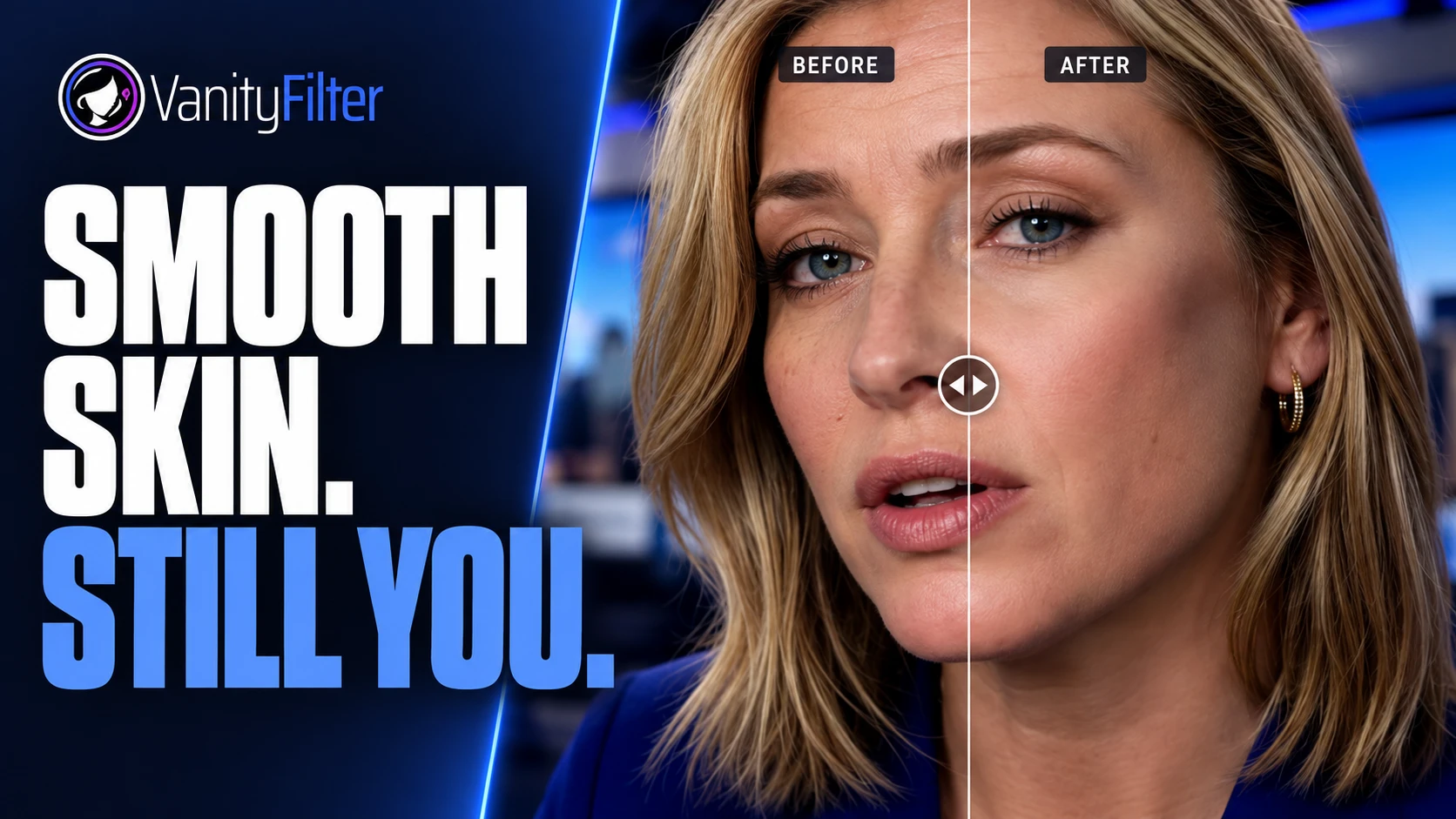
The film below is real VanityFilter output: interview footage processed before the edit.
The routes at a glance
| Route | Where the skin work happens | When it costs you time | Changing the look later | Best for |
|---|---|---|---|---|
| VanityFilter before the edit | Standalone app on Windows or an Apple Silicon Mac | Once, during the batch export | Re-export from VanityFilter, or blend with its skin matte in your editor | Recurring shoots, interviews, podcasts, many clips |
| Beauty Box on the timeline | Inside Premiere Pro, After Effects, Resolve, Final Cut Pro or Avid | Every preview and export of an unrendered section | Any time, in the effect controls | A few hero clips you are still tuning |
| Beauty Box with rendered previews | Inside the editor | When you render previews; reused on export | Yes, but changed sections render again | A locked cut |
| Beauty Box, then Render and Replace (Premiere) | Inside Premiere, flattened to a new media file | Once per clip | Settings lock; Restore Unrendered brings back the original | Clips you have signed off |
Why a beauty effect on the timeline costs time on every render
Beauty Box lives inside your editor. Adobe says Premiere tries to play every clip, effect and title in real time without rendering first, and a skin effect has to be worked out for each frame it touches. When the computer can’t keep up, playback stutters until you render. Change the effect’s settings or the edit underneath it, and that stretch needs rendering again.
One interview clip is easy to live with. A podcast episode cut from two cameras, with Beauty Box on every angle, means a lot of frames to recompute every time a note comes back. Digital Anarchy said in 2013 that Beauty Box keeps Premiere’s Mercury engine from playing back in real time, and estimated 3 to 10 minutes of rendering per minute of HD footage on a fast machine of that era. Hardware has moved on since, so treat that figure as history.
Speed up Beauty Box inside your editor
Digital Anarchy’s own speed tips for Beauty Box start with the GPU, which it calls the most important factor for speed. Work through these in order:
- In the Beauty Box controls, Use GPU should be ticked and not grayed out. Digital Anarchy says it often switches off after a first install or after an operating system or host update. The fix is to open the device file for your GPU (DA_CUDA_Devices.txt, DA_OpenCL_Devices.txt or DA_Metal_Devices.txt), change Enabled = Off to Enabled = On and restart your editor. The product page lists Apple Metal, NVIDIA CUDA and OpenCL support.
- In Premiere Pro, under File > Project Settings > General, choose Mercury Playback Engine GPU Acceleration. Digital Anarchy says Software Only renders Beauty Box more slowly and is only worth using if the GPU option throws errors.
- Digital Anarchy says applying Beauty Box first in the effect stack usually renders faster, with rare cases where it works better last.
- In DaVinci Resolve, apply it on the Edit or Color page. It works in Fusion, but Digital Anarchy says it renders more slowly there.
- In After Effects, test Multi-Frame Rendering on and off. In Final Cut Pro, turn off Background Rendering and Skimming.
That tips page dates from Beauty Box 5.0 in 2022, and the store now sells version 6.0, so check the names against your installed copy.
Render once and reuse it in Premiere
Once the GPU is doing its job, stop paying for the same frames twice. Adobe’s page on preview files says rendered previews are kept on disk and reused, that Premiere trims only the changed part of a preview when you edit a segment, and that ticking Use Previews in the export settings lets the export reuse that work. Render the beauty passes overnight, and the export the next morning skips them.
For clips you have signed off, Premiere’s Render and Replace flattens a clip into a new MXF or QuickTime file. With Include Video Effects ticked, it bakes in the clip’s effects, Beauty Box included, and their settings become non-editable until you use Restore Unrendered. Adobe says nested sequences and adjustment layers can’t be rendered and replaced, so if you put Beauty Box on an adjustment layer over the whole show, this option is off the table.
Smooth skin before the edit with VanityFilter
The other answer is to do the skin work once, before the clips reach your editor. VanityFilter detects up to five faces per frame, builds a skin mask for each one across face, forehead and neck, and smooths only skin. Eyes, lips, hair and clothing stay as shot. You set the look on one clip with a live preview, then batch the rest in the app or with the included command-line tool, and export H.264 MP4 or ProRes 422 HQ MOV. Your timeline then holds ordinary video files with no beauty effect on them.
The batch pass is still rendering. It happens once, before the edit, and it can run while you do something else. We timed it: five clips totaling 75 seconds of 1920x1088 footage at 24 frames per second took 4 minutes 37 seconds to 4 minutes 59 seconds at the Standard preset, on a Core i7-13700K with an RTX 3080, using the VanityFilter 3.1.5 command-line tool. We have not timed the same clips through Beauty Box, so we make no faster-or-slower claim. Our pre-edit batch workflow guide has the full test and a repeatable setup.
The cost of this route: if the client wants less smoothing after you’ve cut, you re-export that clip from VanityFilter instead of nudging a slider in Premiere. On a weekly show, where the settings rarely change, that’s a good trade.
Keep a dial in the editor with the skin matte
VanityFilter can also export a grayscale skin matte video alongside your footage. Put it above the clip and use Track Matte Key in Premiere Pro, or connect it as an External Matte in DaVinci Resolve, and your editor’s own blur or color correction applies only to skin. Our skin mask matte guide has the exact steps for both. Those native effects still render with the timeline, so this route trades some of the speed for a look you can keep adjusting.
Which route to take
For one or two hero clips you are still tuning, keep Beauty Box, fix Use GPU first and render previews. For a locked cut, render previews and export with Use Previews, or Render and Replace the finished clips. For a recurring show with the same faces, the same lights and a lot of footage, smooth the clips in VanityFilter before the edit. That’s how I run my own footage, and it’s why I wrote the app... my timeline had enough to do already.
On cost, Digital Anarchy’s store lists Beauty Box Video at $199 for one host, with all host apps for an extra $49 (read November 3, 2026). VanityFilter is $29.95 USD on sale, regularly $49, one time, for one person on two active computers across Windows and Mac. If you smooth footage every week, the VanityFilter license costs less than one host of the plugin. For a side-by-side of the two products, see our Beauty Box Video alternative page.
Frequently asked questions
Why is Beauty Box Video so slow in Premiere Pro?
Beauty Box renders inside Premiere with the rest of your edit, frame by frame, every time you preview or export a section that isn’t already rendered. Digital Anarchy calls GPU rendering the most important factor for speed. Check that Use GPU is ticked and not grayed out, and set File > Project Settings > General to Mercury Playback Engine GPU Acceleration. Digital Anarchy says Software Only renders Beauty Box more slowly. If you would rather not tune this on every project, VanityFilter smooths skin before the edit, so the timeline holds ordinary files with no beauty effect to render.
Why is Use GPU grayed out in Beauty Box?
Digital Anarchy says the checkbox is often disabled after a first install or after an operating system or host app update. Its fix is to open the device file for your GPU (DA_CUDA_Devices.txt, DA_OpenCL_Devices.txt or DA_Metal_Devices.txt), change Enabled = Off to Enabled = On, and restart your editing app. VanityFilter avoids the plugin setup entirely: it is a standalone app that exports already-smoothed clips.
Does smoothing skin into a ProRes file before editing reduce image quality?
Any export is a new generation of compression. VanityFilter exports ProRes 422 HQ MOV, a high-bitrate editing codec, or H.264 MP4. Choose ProRes 422 HQ when the clip will be graded and exported again, and expect much larger files than H.264.
Can VanityFilter use my NVIDIA GPU for faster rendering?
Partly. VanityFilter’s skin processing runs on the CPU on every system. The H.264 encode can use NVIDIA, Intel Quick Sync or AMD AMF hardware on Windows, or Apple VideoToolbox on a Mac. A faster graphics card speeds up the encode, not the skin pass.
Will smoothing before the edit make my final export faster?
It takes the per-clip beauty effect off the timeline, so the editor no longer computes smoothing while you cut or export. How much time that saves depends on your editor, your other effects and your hardware, and we have not timed it against Beauty Box. We have timed the batch step: five clips totaling 75 seconds of 1920x1088 footage took 4 minutes 37 seconds to 4 minutes 59 seconds at the Standard preset on a Core i7-13700K with an RTX 3080, using the VanityFilter 3.1.5 command-line tool.
Want to try the pre-edit route on your own footage? The 14-day demo license is $9.95 USD and includes every feature.