
VanityFilter is our pick for Windows video skin retouching when you want a dedicated local skin pass without buying a host plugin. It costs $49, currently on sale for $29.95, with a perpetual license for one person on two active computers shared across Windows and Apple Silicon Macs. Process recorded clips, export corrected files, then keep editing in the program you already use. VanityFilter complements your editor; it does not replace it.
We make VanityFilter. This is a workflow and buying-cost comparison, not an independent ranking or a head-to-head image-quality test. Product facts and vendor prices were checked October 30, 2026. The current VanityFilter release is 3.3.0.
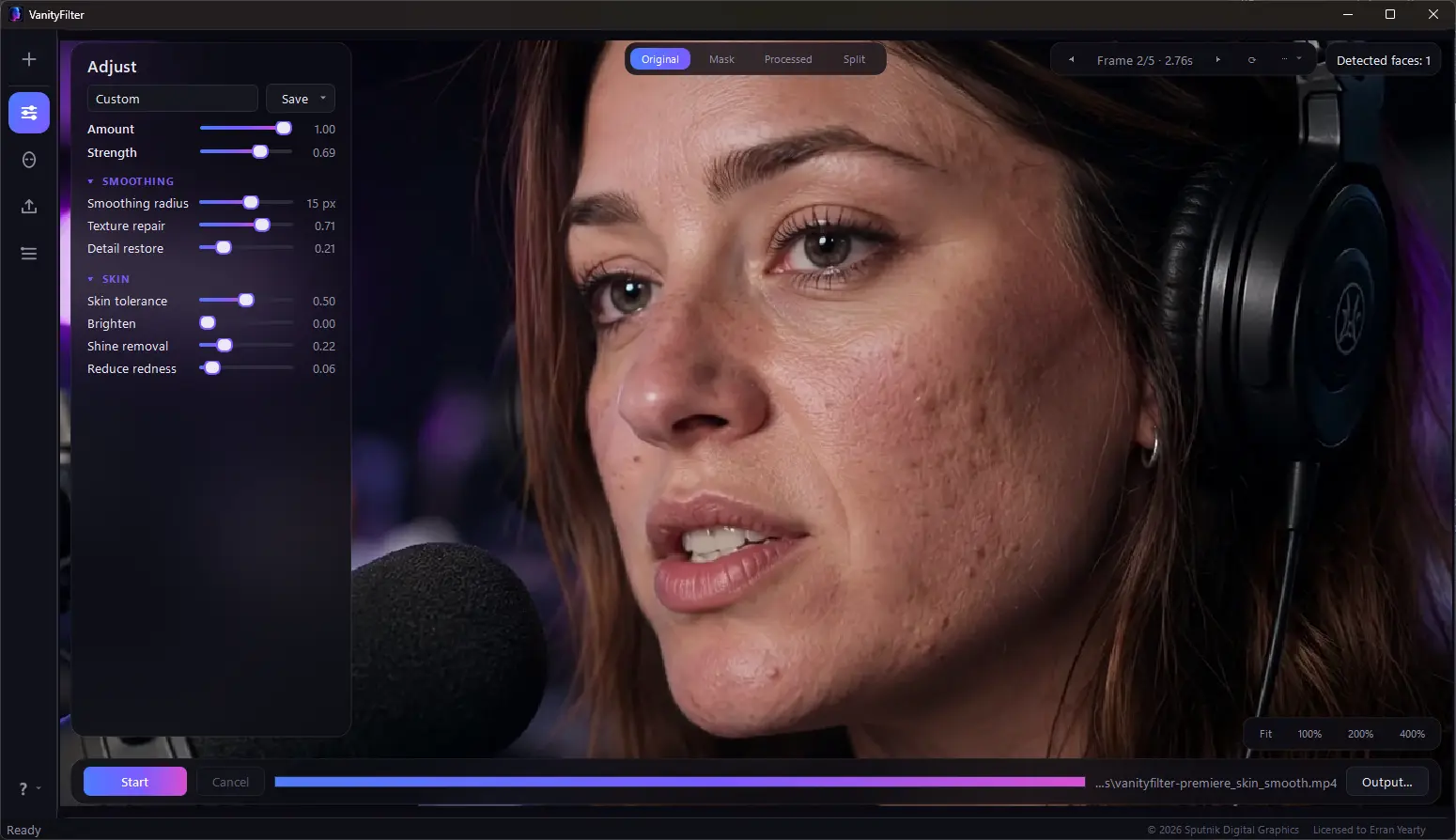
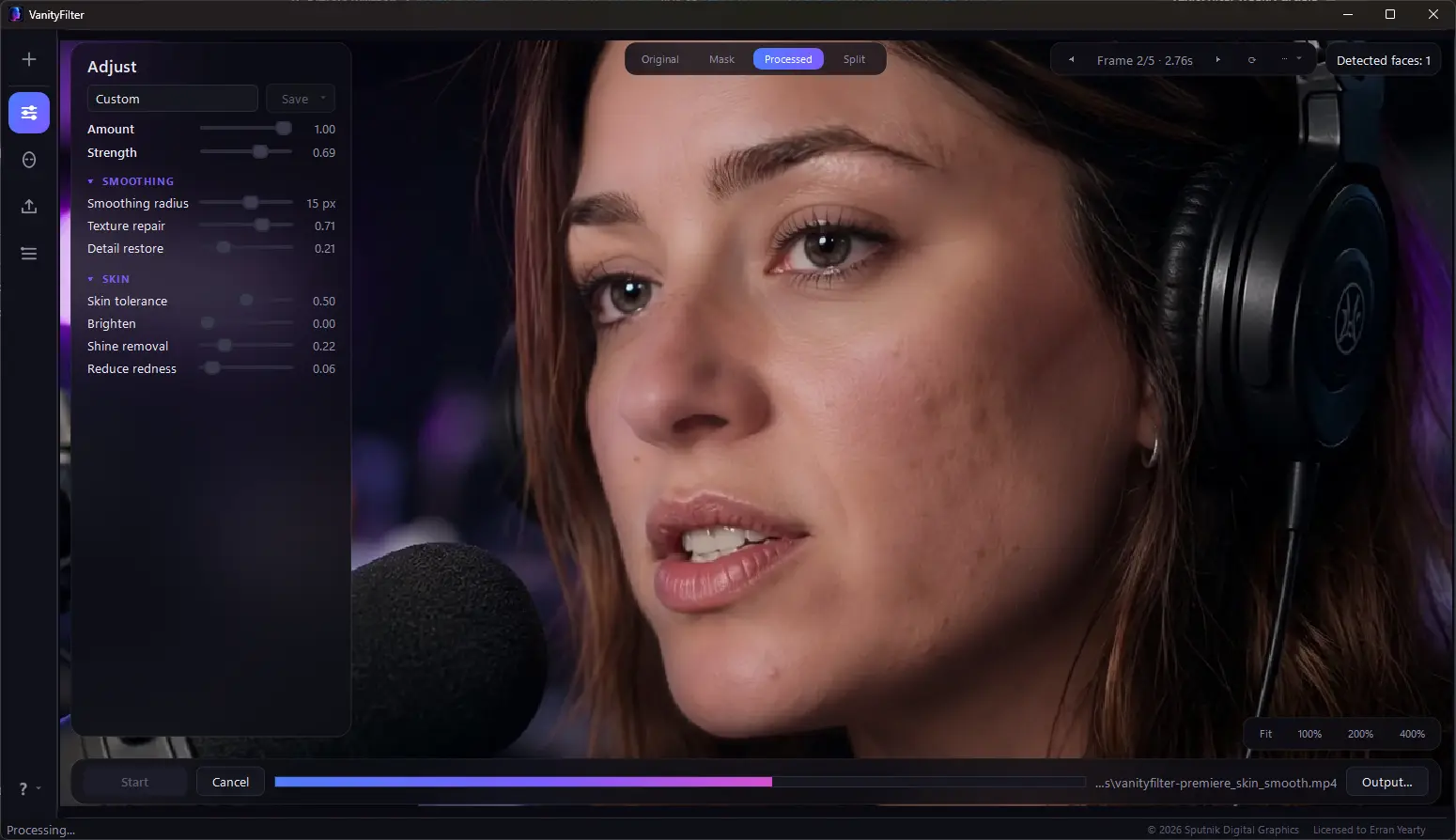
Real VanityFilter output. Drag the handle across the cheeks and hairline. This shows our result only, not output from competing tools.
Which Windows workflow are you buying?
US-dollar prices below were checked October 30, 2026. Host software is a separate cost for plugins. Promotions can end; follow the vendor links before buying.
| Software | What you get for skin work | Workflow tradeoff | Current buying cost |
|---|---|---|---|
| VanityFilter | Standalone skin pass, up to five detected faces and optional mask matte | Local corrected files work across editors; changing the treatment means another export | $29.95 sale, regular $49. Perpetual, one person, two active computers |
| Imagenomic Portraiture Video | Skin-retouching plugin with face tracking | Adjust the effect inside a supported host; choose the right host license | $249.95 per host version on Imagenomic’s pricing page |
| Digital Anarchy Beauty Box Video | Skin-tone mask with smoothing and shine reduction | Retouching stays in the host project rather than a separate source export | $199 single-plugin listing; subscription options also exist. Check host coverage |
| DaVinci Resolve Studio | Face Refinement and Beauty tools within the editor | Useful if you already finish in Resolve; a whole editor purchase for a skin-only job | $236 current sale, regular $295, for Studio |
| CapCut Retouch | Face-retouching controls where available | The documented online route uploads video; the US restriction matters | Online page advertises free access, but currently says Retouch is unavailable in the US |
VanityFilter: buy the skin pass, keep your editor
VanityFilter runs on 64-bit Windows 10 version 1809 or later and Windows 11. It also supports Apple Silicon Macs on macOS 14 or later; Intel Macs are unsupported. Video processing stays on your computer. The feature page documents the current controls, while the download page has the system requirements.
It builds a separate skin mask for each detected face, up to five in a frame. The controls include Texture repair, Detail restore and Blemish removal, with separate treatment for shine and redness. Strength controls the smoothing; the master Amount dial blends the overall treatment toward the original. Set the effect on representative frames, then check moving output.
Separate masks do not mean separate sliders. One set of settings applies to everyone who is smoothed. Primary face only and Ignore small faces select by size and position, and People lets you scan the clip and untick anyone who should stay untouched. For two different treatments, export separate passes and blend them in your editor. Our multiple-face guide explains that limit.
Turned heads and some profile views are detected, but detection can fail. When both detectors lose a face, its mask fades out. Inspect the overlay on a head turn before sending a batch. A selected face is not a promise of persistent identity tracking.
Export H.264 MP4 or ProRes 422 HQ MOV, with an optional grayscale skin mask matte for an editor. Skin processing runs on the CPU; supported hardware can accelerate H.264 encoding. Neither step is instant. A standalone pass changes where the work happens, and we have not measured a universal time saving against manual retouching.
The license covers one person on two active computers. Each machine activates online with the license key and a code sent to the purchase email. No account is required. After a successful check, the app allows up to 30 days offline; new exports need another check after that period. Activation checks do not upload your footage. Read the activation details.
Portraiture Video and Beauty Box: when the effect belongs in your timeline
A host plugin earns its keep when you must keep changing the treatment inside the edit. VanityFilter gives you a corrected source file instead. That is convenient across editors, but a revised skin treatment requires another export.
Imagenomic Portraiture Video documents face tracking and skin controls in Premiere Pro and After Effects, DaVinci Resolve, or Final Cut Pro on Mac. Its pricing page lists $249.95 for each host version, with Premiere Pro and After Effects grouped together. Pick the host coverage you need. The page also offers a $299.95 one-time Video Suite or a $129.95 yearly plan, so the single-plugin price is not the only buying route.
Beauty Box Video uses skin-tone detection to limit smoothing and shine reduction to a skin mask. Supported hosts include Premiere Pro, After Effects, Resolve through OpenFX, Avid and Final Cut Pro on Mac. Its official FAQ lists $199; the store is the place to check selected host coverage and current offers. Subscription routes exist too. Don’t assume that buying one plugin covers every host.
VanityFilter’s $29.95 sale license is the lowest-priced paid skin-only license in this table. Choose a plugin over VanityFilter when an editable effect inside your host project matters more than a separate local pass. Our Beauty Box alternative guide covers that specific decision.
Resolve Studio: try the tools you already own
Blackmagic documents Face Refinement on the Color page: analyze a face, then work with facial-region masks. Its Studio page includes face and beauty tools in the paid edition and currently lists Resolve Studio 21 at $236, reduced from $295. Face Refinement is not included in free Resolve.
If you already own Studio and finish every shot there, test its face tools before buying another product. VanityFilter makes more sense when you want the same corrected clips in several editors or prefer a focused batch step. This is not a claim that either produces better skin. See the Resolve skin-smoothing workflow for the closer comparison.
CapCut Retouch: check availability before planning around it
CapCut’s online Retouch page describes uploading video and adjusting skin controls. It also says Retouch is currently unavailable in the United States. The notice is on the online page; it does not establish the desktop app’s availability or processing location.
Our CapCut guide separates those routes. VanityFilter is the documented local recorded-video option here when uploading footage is unsuitable. Check desktop CapCut’s actual behavior before making the same privacy claim for it.
Choose for the footage you actually cut
For professional video skin retouching, the useful test is your difficult shot. Try a two-person interview with a head turn, or a close-up where the light catches the forehead. Watch normal-speed playback before inspecting a still. Look for a mask crossing into an eyebrow or clothing, then check whether skin detail holds as the head moves. Our temporal-stability guide explains what a single frame can hide.
VanityFilter can reduce the need to draw and follow skin masks by hand on footage its detectors handle. You still review the mask and render the file. Less manual masking does not mean no review. For a client job, test a short export before committing the whole shoot. Keep the original footage.
For a Windows PC without a paid timeline editor, pair VanityFilter with free DaVinci Resolve, Shotcut or Kdenlive. Those editors handle the cut; VanityFilter handles the skin pass. Our no-subscription editing setup guide compares those pairings. If you already use Clipchamp or Camtasia, import the corrected clip there. Use the batch workflow when compatible source clips need the same settings.
Buy VanityFilter for a dedicated local skin pass at $29.95 while the sale runs. Its perpetual license covers two active computers for one person. Pay for a host plugin when you need retouching adjustable inside the project, or use Studio’s existing tools if you already own it. Keep the editor you need for the rest of the job.
Watch the actual VanityFilter result
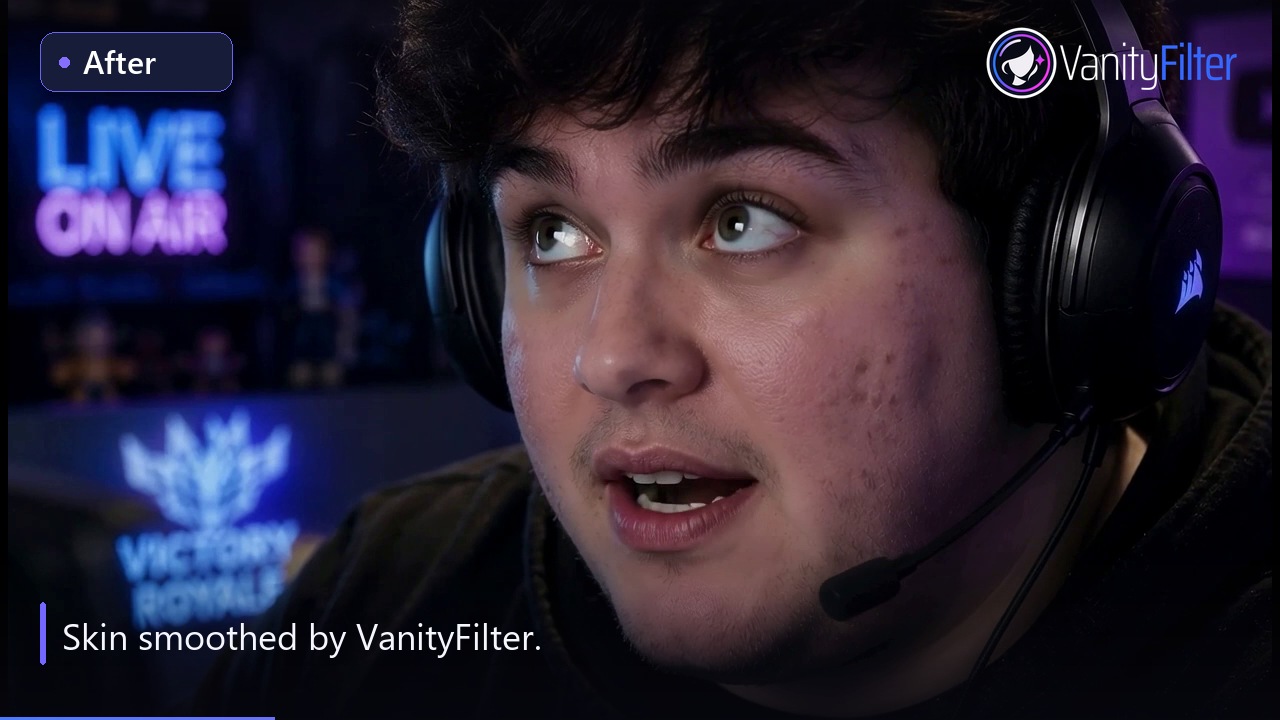
The same recorded clip before and after VanityFilter. Inspect the skin in motion and the protected feature edges. This is not a competitor output comparison.
Frequently asked questions
What is the best skin retouching software for Windows video?
VanityFilter is our recommendation for a dedicated local skin pass without a host plugin. It detects up to five faces, batch-processes recorded clips and exports corrected files or a skin mask matte. If retouching must stay adjustable inside a host project, compare a plugin against that export workflow.
Can VanityFilter retouch multiple faces with different strengths?
VanityFilter builds a separate mask for each detected face, up to five per frame, but one set of sliders applies to everyone who is smoothed. People lets you untick anyone who should stay untouched. To use different treatments, export separate passes and combine them in your editor. It does not select a person by name or guarantee persistent identity tracking.
Is VanityFilter a one-time purchase for two computers?
Yes. The full license is perpetual for one person on two active computers shared across Windows and Apple Silicon Macs. It costs $49, currently on sale for $29.95 as checked October 30, 2026. Each computer activates online; the app permits up to 30 days offline between successful checks.
Does VanityFilter replace a video editor or work as a live filter?
No. VanityFilter is a standalone app for recorded video. Export a corrected file and use your existing editor for the cut. It is not a live-camera filter or an editor plugin.
Is DaVinci Resolve Face Refinement free?
No. Blackmagic lists Face Refinement as a Studio feature. Free Resolve can edit clips exported by VanityFilter, but buying VanityFilter does not add Face Refinement to free Resolve.
Can I retouch video without uploading the footage?
Yes. VanityFilter processes recorded video on your computer. Its online license checks do not upload your footage. CapCut’s documented online Retouch workflow begins with an upload; its online notice does not establish what its desktop app does.
Try VanityFilter on your own difficult clip. The $9.95 14-day demo is a paid, time-limited license with full features and clean exports. It is different from the free watermarked three-day trial.