
Riverside does have a skin smoothing setting. It lives in the studio, it has two levels, and you have to choose it before the recording starts. If you forgot, if your guest never opened the panel, or if the episode is already recorded, Riverside’s editor has nothing to add afterwards. Here is how to get Touch up right in the studio, and how to fix skin on a recording that already exists.
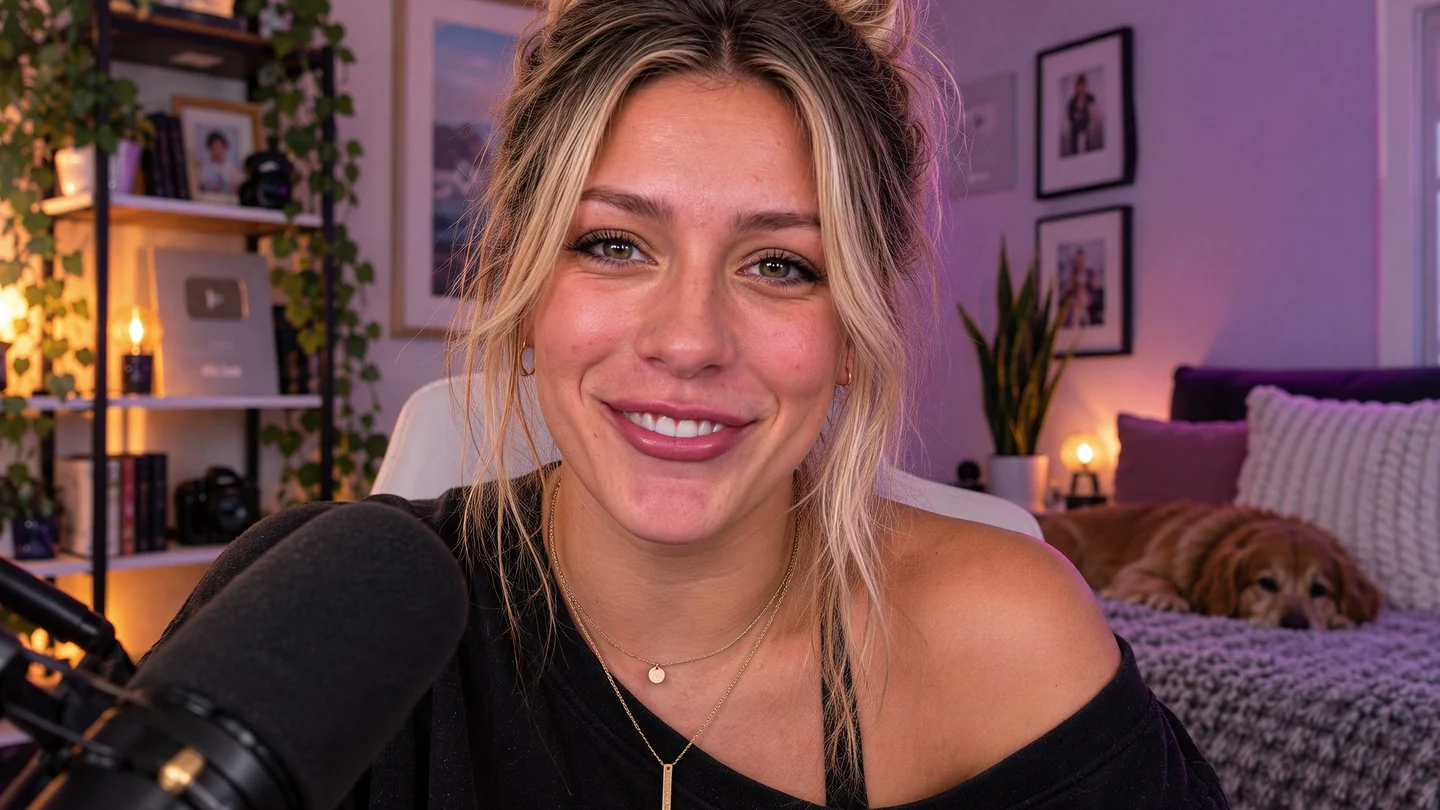
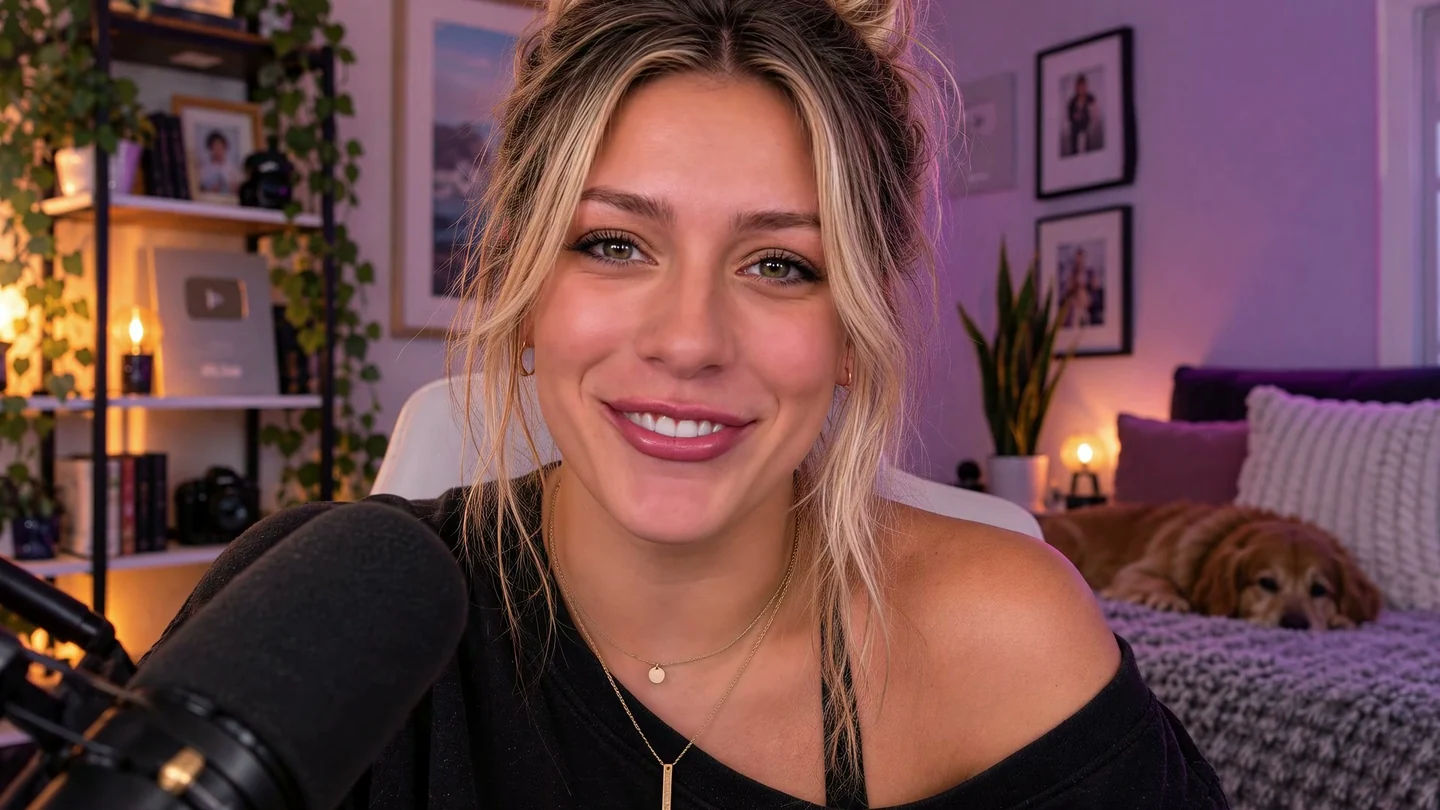
The same frame of a creator talking-head clip before and after processing in VanityFilter 3.1.5. Drag to compare the cheeks and nose. The microphone and the room behind her are left as shot. This clip was not recorded in Riverside.
Turn on Touch up in the lobby if you want Riverside to smooth skin live. For a recording you already have, download each participant’s video track, run a skin pass on those files on your own machine, and edit the corrected tracks in your editor.
What Riverside gives you in the studio
Riverside’s help article Apply video touch-ups in the studio describes the setting. Hover over your own video tile, click the Visual effects icon and open the Appearance tab. Touch up smooths your skin on camera, and you pick Subtle or Smooth. Two lighting options sit next to it: Face lighting, and a Studio lighting slider that brightens or dims the scene.
A few details from the same page matter for planning a shoot. It is listed for the Pro, Grow, Webinar and Business plans, in a computer browser. Hosts, producers and guests each set it on their own tile, so your guest’s camera only gets smoothed if your guest turns it on. And the page is explicit that video touch-ups are not available while a recording is in progress. You can set them in the lobby, or stop recording, change them in the studio and start again.
For a solo episode where you know your light, that can be all you need. Pick the level in the lobby, check your tile, and record.
Where it runs out
Two levels is not much range. Subtle might not reach a shiny forehead under a ring light, and Smooth might be too much on a guest with fine lines who wants to look like themselves. You also make the call before you see the footage, at whatever size your preview tile happens to be.
The bigger gap is after the fact. We searched Riverside’s help center for skin controls and the studio article was the only match. The editor has an Enhance video tool, which Riverside describes as improving the visual quality of a recording. It is offered on some Business plans for recordings up to 1080p, and it is a picture quality tool with no skin setting. So when an episode is already recorded, the retouch has to happen outside Riverside.
Fixing skin on a recording you already have
Riverside records a high-quality track locally on each participant’s device and lets you download those tracks separately. That suits a skin pass well. Per Riverside’s download guide, you open Recordings, find the session, and under Tracks click Download next to each participant. The choices are raw video, aligned video, raw audio and compressed audio. One catch from that page: separate track downloads count against your plan’s download hours, so check your allowance before a big backlog.
- Download every participant’s video track in the same format, all raw or all aligned, so they line up again later.
- Run the skin pass on each track as its own file, with its own settings. A host under a key light and a guest on a laptop webcam rarely want the same strength.
- Edit the corrected tracks in your editor the way you normally would. The skin work is already baked into the files, so the editor’s export stays the final encode.
Separate tracks are the easy case because each file holds one person. If you only have the combined all-participants video, the pass can still work on the whole frame, since it finds each face. Our podcast and livestream guide goes deeper on two-host shows and long episodes.
Running the pass in VanityFilter
VanityFilter is a Windows application that processes video files offline. It reads MP4, MOV, AVI and MKV, so the tracks Riverside gives you go straight in. Open a track, pick a frame where the person is mid-sentence and moving, and check the mask overlay first. Smoothing should stop at the hairline and leave the eyes, brows, lips, hair and headphones alone. If the mask is clean, raise the Master Amount slowly from a low start until the skin looks rested, then stop.
Export at the source resolution. You can write H.264, which is GPU accelerated on NVIDIA, or ProRes 422 HQ if your editor prefers an intermediate, and the original audio is kept either way. If you would rather grade the skin yourself, export the grayscale mask matte and use it as a track matte in your editor. The mask matte workflow shows how that looks in Premiere Pro and DaVinci Resolve.
Some limits are worth knowing before a long session. Variable frame rate footage exports at a constant frame rate. Up to five faces are detected per frame. A face that is very small or mostly covered is skipped for those frames, and the mask fades out instead of popping.
Should you use Touch up and a post pass together?
You can, but decide which one does the work. Two smoothing passes stack, and a guest who recorded on Smooth plus a strong post pass can end up waxy. If someone already used Touch up, look at their downloaded track at full size before you add anything, and keep the post pass light or skip it for that person. If you know you will retouch in post anyway, recording with Touch up off on every tile gives you a consistent starting point across guests.
Frequently asked questions
Does Riverside have a skin smoothing filter?
Yes, in the studio. Riverside’s Touch up setting, under Visual effects and then Appearance, smooths your skin on camera with a choice of Subtle or Smooth. Riverside lists it on the Pro, Grow, Webinar and Business plans, in a computer browser.
Can I turn on Touch up while a Riverside recording is running?
No. Riverside’s help article says video touch-ups are not available while a recording is in progress. You set it in the lobby, or you stop the recording, change it in the studio and start recording again.
Can I add skin smoothing to a Riverside recording after it is finished?
Not inside Riverside, as far as its help center shows. The editor’s Enhance video tool improves overall picture quality and is not a skin control. To retouch a finished recording, download the participant’s video track and run a separate skin pass on that file.
Which Riverside download should I use for a skin pass?
Download each participant’s high-quality video track, which Riverside records locally on that person’s device. Use the same format for every participant, raw or aligned video, so the corrected tracks line up again in your editor.
Does VanityFilter work inside Riverside?
No. VanityFilter is a separate offline Windows application. It reads the video files you download from Riverside and writes corrected files, which you then edit in your usual editor. It does not connect to your Riverside account.
VanityFilter runs offline on Windows with a one-time license. Download it here and try a pass on one Riverside track before you process a whole season.