
Most skin smoothing is set up with one face in mind. Interviews, co-hosted podcasts and panels put two or more people in the same shot, often with different complexions, different lighting and different amounts of shine. A setting that suits the host can leave the guest untouched, or soften a beige sweater and a wooden bookshelf along the way. Here is how to retouch everyone in the frame in a single pass.
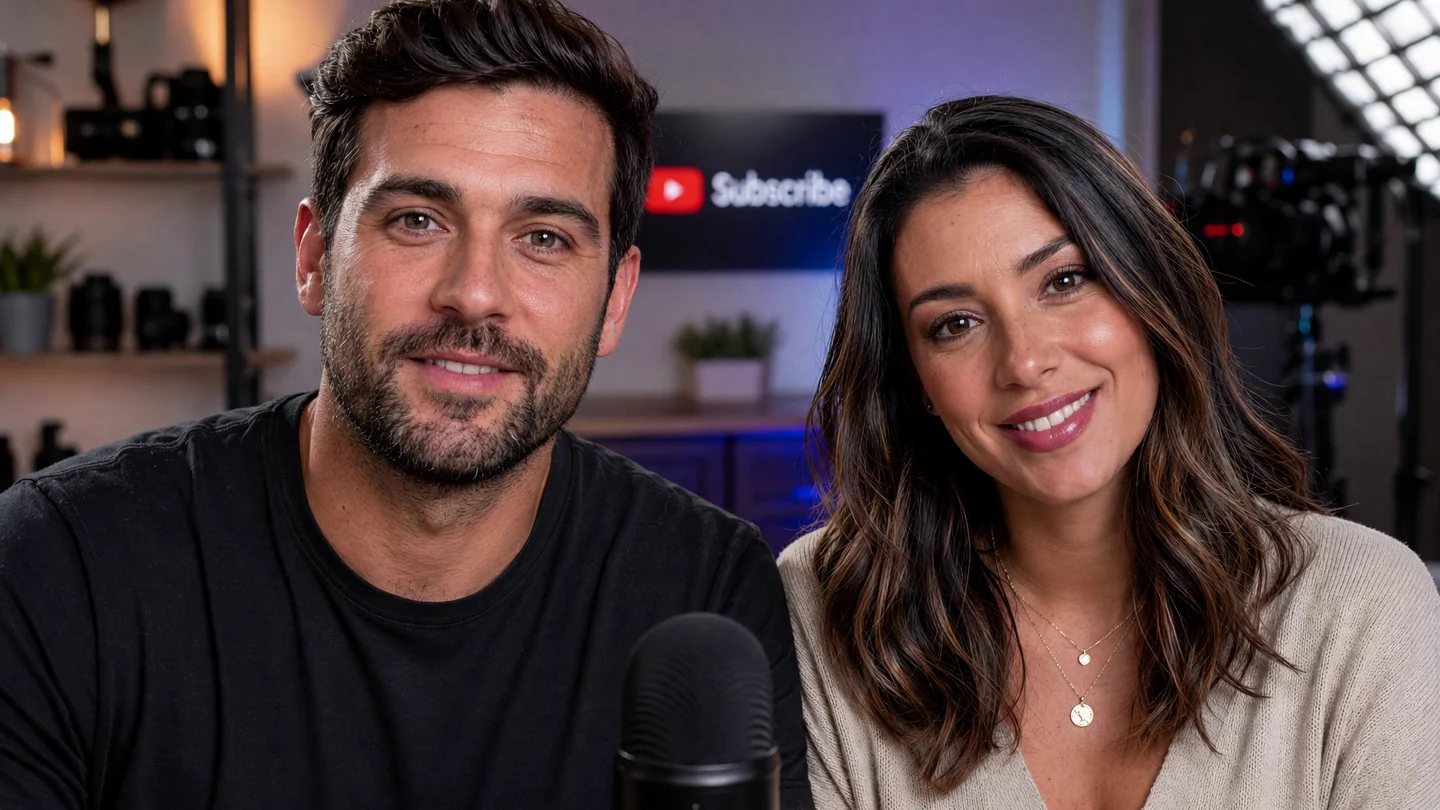
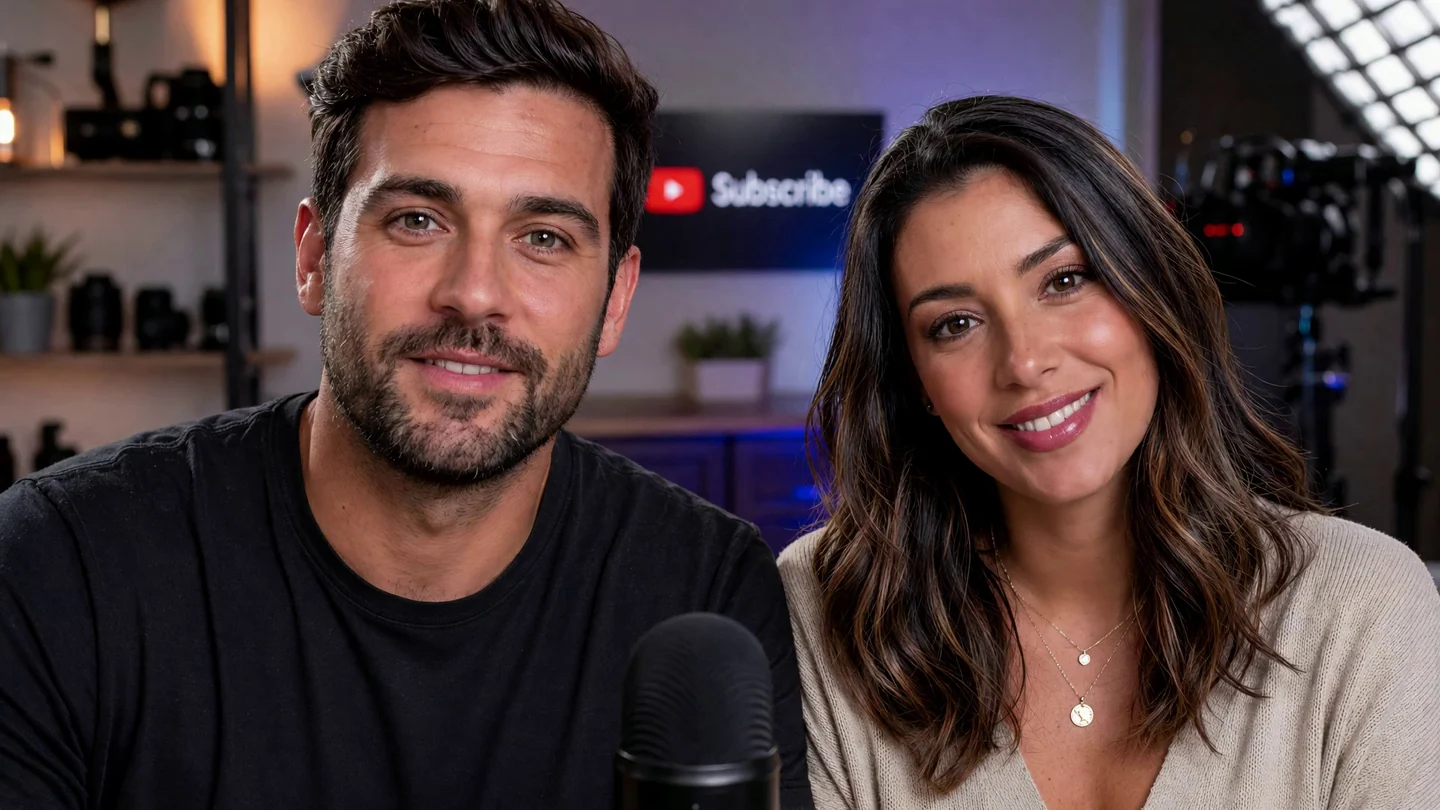
The same two-person frame before and after processing in VanityFilter 3.1.5. Drag across and compare both faces. The shirts, the microphone and the set behind them are left as shot.
VanityFilter detects up to five faces per frame and builds a separate skin mask for each one. Check the mask on a few frames, set one Amount that works for everybody, and use Primary face only or Ignore small faces to keep bystanders out of the effect.
Why one setting struggles with two faces
Tools that find skin by a range of color have to pick one range. If it is centered on the lighter complexion, the darker one sits outside it and gets little or no smoothing. If you widen the range until both fit, it starts catching anything else in that color family: a tan jacket, a cardboard prop, warm wood paneling. You end up trading skin coverage for a blurry background.
The manual fix is a mask per person. In an editor that means a duplicate layer or adjustment for each face, each with an animated shape that follows the head. For two people who lean, gesture and turn to each other, that is a lot of keyframes for one interview cut, and every new cut needs the same treatment again.
How per-face masks work in VanityFilter
VanityFilter does not start from a color range. It detects faces first, up to five per frame, including turned and profile heads, and builds a separate skin mask for each face it finds. Two people with different tones each get a boundary that fits them, and the shirts and set stay outside both.
The mask is per person, but the settings are shared. The Master Amount and the sliders around it apply to every selected face. In practice, pick an Amount that looks right on the person who needs the least, then check the other face before you commit. If one person needs a much stronger or lighter treatment, see the notes on separate tracks below.
Controlling who gets treated
Frames with extras are common: a crew member walking through, an audience behind the panel, a face on a poster. Two controls cover them.
Primary face only treats the largest, most central face and leaves everyone else alone. Ignore small faces skips any face shorter than a chosen fraction of the frame height, so people in the distance stay as they are. The preview marks ignored faces with gray boxes and shows detected, selected and ignored counts, so you can see which faces the effect will touch before you export.
Both rules are recalculated from geometry on every frame. The effect does not jump to a different person because the detector happened to list the faces in a new order. A face that is very small or mostly covered, for example by someone walking in front of it, is skipped for those frames and its mask fades out instead of popping.
A workflow for a two-person interview
- Open the interview file and scrub through it. Stop on a wide frame, a frame where someone turns toward the other person, and a frame where a hand crosses the face.
- Open the Mask view on each of those frames. Both faces should show a clean mask that stops at the hairline and leaves eyes, brows, lips and hair alone. Check the detected and selected counts.
- Raise the Master Amount slowly from a low start. Judge it on the person who shows the most texture, then look at the other face to make sure it still reads as them.
- Export the corrected video at the source resolution. You can write H.264 or ProRes 422 HQ, and the original audio is kept. If you would rather grade the skin yourself, export the grayscale mask matte and use it in your editor. The mask matte workflow covers Premiere Pro and DaVinci Resolve.
When two people need different treatment
One pass uses one set of sliders. If a guest recorded on a laptop webcam and the host sits under a key light, they rarely want the same strength. When you have a separate video track per person, as most remote recording tools provide, run each track as its own file with its own settings. If you only have the combined shot, process it once at a level that works for both, or export the mask matte and blend a heavier or lighter version over one face in your editor.
The same applies to a wide two-shot where the faces are small. Detection works best when each face has enough pixels to find, so review the mask on your widest frame before you process the full episode. Our podcast and livestream guide goes further on long episodes and two-host shows.
Limits to know about
VanityFilter detects up to five faces per frame, so a crowd shot is not a fit. Variable frame rate footage exports at a constant frame rate. The result also depends on the source: heavy compression, motion blur or a face turned away reduces how clean a mask can be, which is why checking frames before the export matters.
Frequently asked questions
Can VanityFilter smooth skin on two people with different complexions?
Yes. VanityFilter finds each face and builds a separate skin mask for it, so it does not depend on one shared color range. Check the Mask view on a few frames to confirm both people are covered, because lighting and camera quality still affect how clean each mask looks.
How many faces can VanityFilter track at once?
Up to five faces per frame, including turned and profile heads. If more than five people are on screen, only five are detected in that frame.
Can I give each person a different smoothing strength?
Not inside one pass. The Master Amount and the other sliders apply to every selected face. If two people need very different strength, process their tracks separately when you have them, or export the mask matte and blend the pass in your editor.
What happens if people in the background walk behind the subjects?
Turn on Primary face only to treat just the largest, most central face, or raise Ignore small faces so people below a chosen fraction of the frame height are left alone. A face that is very small or mostly covered is skipped for those frames and the mask fades out instead of popping.
Does this work on a podcast with a wide two-shot?
Yes, as long as both faces are large enough to detect. A wide shot with small faces gives the detector less to work with, so review the mask on your widest frame before processing the whole episode.
VanityFilter runs offline on Windows with a one-time license. Download it here and try a pass on your next two-person interview.