
You searched the OBS filter list for something like Beauty, Smooth, or Retouch, and it is not there. That is not a settings problem and you did not miss a checkbox. OBS Studio genuinely does not ship a skin filter, so every beauty look you have seen on a stream came from somewhere else in the chain. Knowing where changes what you should install, and whether you should be doing this live at all.
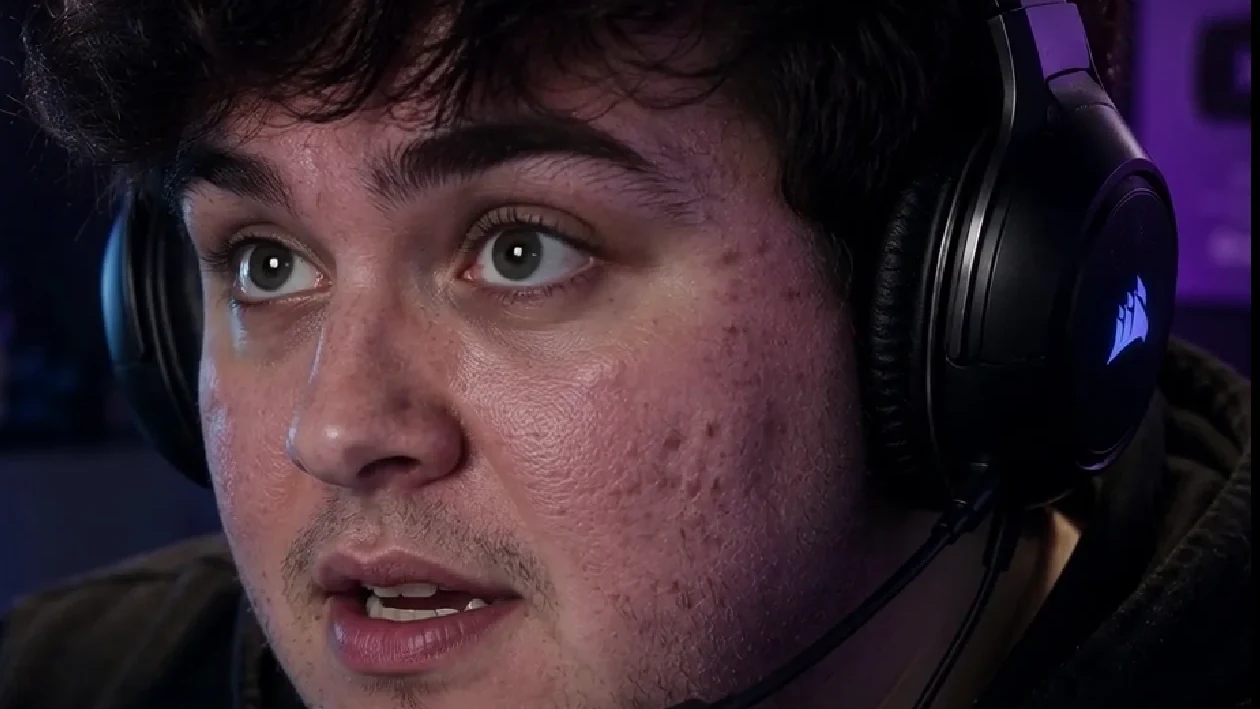
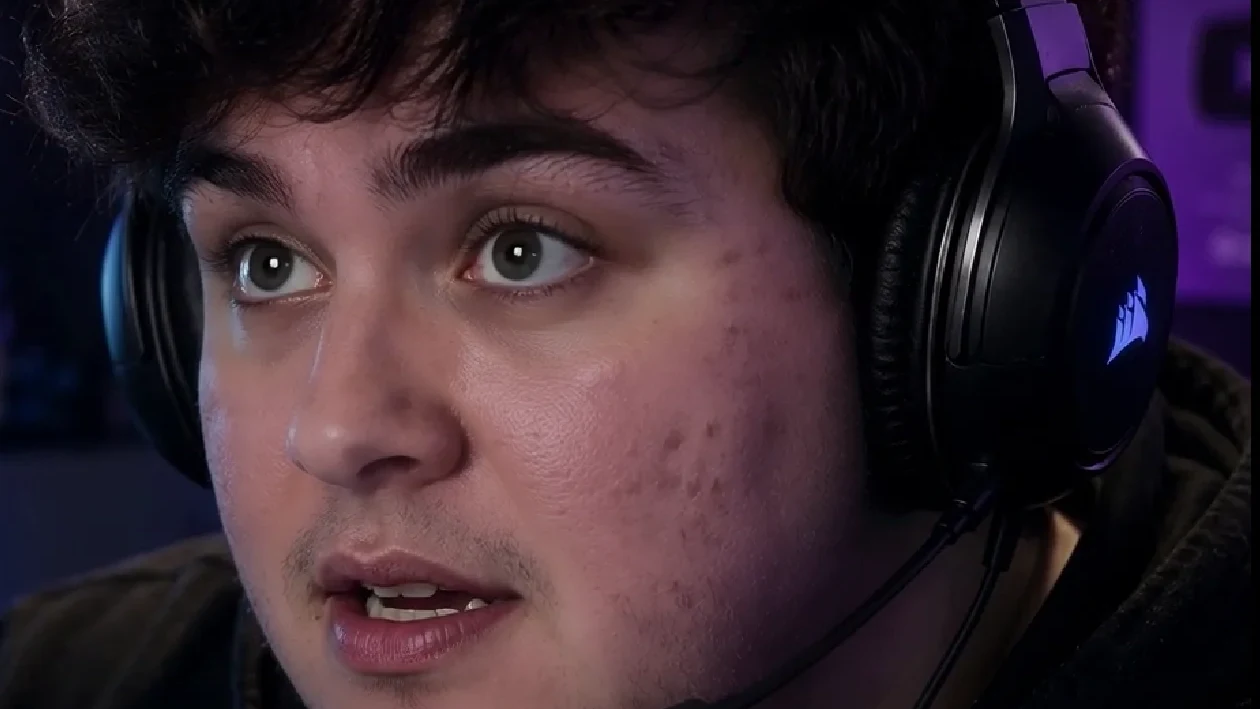
A real VanityFilter pass on a recorded gaming clip, not an OBS screenshot. Note what is still there: stubble, headset texture, the shape of the cheek. That is the bar a live filter has to clear.
The short version: OBS has no native beauty filter. Live smoothing means a virtual camera app, a third-party plugin, or a camera that does it in hardware, and all three bake the result into your stream and your recording permanently. If the video will live on after the stream ends, fix the lighting live and do the skin pass on the recording, where you can still change your mind.
What OBS actually gives you
Here is the full stock effect filter list from OBS Studio: Apply LUT, Chroma Key, Color Correction, Color Key, Crop/Pad, Image Mask/Blend, Luma Key, Render Delay, Scaling/Aspect Ratio, Scroll, and Sharpen. That is it. Not one of them knows what a face is.
People still try to fake it, and the attempts are worth naming because they all fail in a specific way:
- Sharpen turned negative. There is no negative. Sharpen sharpens, and cranking it is the fastest way to make pores and compression edges louder.
- Color Correction to wash out the face. Lifting brightness and killing saturation hides blemishes by hiding everything. Your background, your keyboard, and your shirt get the same treatment.
- A LUT that flattens the midtones. Same problem, prettier packaging. A LUT is global, and skin unevenness is local.
- A blurred duplicate source with Image Mask/Blend. Closer in spirit, and it is the manual version of what a real skin filter does. But the mask is a fixed shape and your head is not, so the moment you lean forward the blur is sitting on your background.
The reason a proper skin pass needs face detection and a per-frame skin mask is exactly this: the correction has to follow the person. We go through that logic in more depth in how to smooth skin in video without looking fake.
The three real ways to get smoothing into OBS
1. A virtual camera app
This is the common one. A separate application processes your webcam and publishes the result as a camera device. In OBS you add a Video Capture Device source and pick that device instead of your actual webcam. Streamfog is a current example: its own page says to select Streamfog as your virtual camera or drop it in as a browser source, and it lists skin smoothing, teeth whitening, contouring, highlights, and makeup. It runs on macOS, Windows, and Linux, and it is free to use with a watermark, with the watermark removed on a paid tier.
The tradeoff is that a second app is now sitting between you and every scene you build. It has its own CPU or GPU cost, its own update schedule, and its own opinion about your face.
2. A third-party OBS plugin
Community plugins exist that add face-aware smoothing directly to OBS. Some are scripts, some are compiled binaries. Be honest with yourself about the risk here: an OBS plugin is native code running inside the app that owns your stream key. Check who maintains it, how recently, and whether anyone else is actually using it. A plugin that crashes OBS mid-stream costs more than a shiny cheek.
3. The camera side
A lot of webcams and PTZ cameras have beauty settings in their own software, and they apply before the signal ever reaches OBS. This is the least flexible option and the most stable one, because nothing on your PC has to keep up. Worth checking before you install anything, since you may already own it.
What NVIDIA Broadcast does and does not do
Broadcast comes up constantly in this search, so to be clear: it has no beauty or skin retouch effect. Its camera effects are Virtual Background, Virtual Key Light, Eye Contact, Video Noise Removal, and Auto Frame. It needs an RTX 2060 class GPU or better on Windows.
Two of those are still relevant to you. Virtual Key Light evens out facial shadows, and Video Noise Removal cleans a noisy low-light webcam image. A lot of "my skin looks terrible on stream" is really sensor noise and a single harsh light source, and both of those are fixable without touching skin at all.
The thing nobody mentions: it is baked in
Whatever OBS composites is what it encodes, to the live stream and to the local recording at the same time. There is no separate clean layer. A beauty filter on your camera source is in the stream, in the VOD, in every clip someone makes of you, and in the file you were planning to cut into a YouTube video next week.
Live, that is fine. The stream is disposable, chat is moving, and nobody is pausing on frame 4,812 of your face. Recorded content is a different job. Real-time filters have a few milliseconds per frame to work with, so they lean on cheap approximations, and cheap approximations wobble. That wobble scrolls past live and becomes a permanent artifact in anything you keep.
So the real question is not "which OBS beauty filter is best." It is "how long does this video have to survive."
| What you are making | Do it live | Do it in post |
|---|---|---|
| Twitch stream, no VOD plans | Yes, keep it gentle | Not worth the time |
| Stream you will clip for shorts | Light touch only | Yes, on the clips |
| Recorded YouTube video | No, run the camera clean | Yes |
| Client or sponsor deliverable | No | Yes, and keep the unfiltered master |
| Interview or podcast with guests | Only if guests agree | Yes, per person |
| Webinar or a work call | Yes, whatever is easiest | No |
If you are running a multi-person show, the per-guest part matters more than people expect, and the podcast and livestream guide covers how isolated participant tracks change the math.
If you are going live, do this first
Every hour spent picking a beauty filter is an hour not spent on the thing that is actually making your skin look rough. In roughly this order:
Before you install anything
- Add a soft light in front of you, slightly above eye level, and get it off the ceiling fixture. Hard overhead light carves shadows into every bit of texture you have.
- Kill the noise. A dim webcam image is grainy, and grain reads as bad skin. More light beats any filter.
- Check your camera's own sharpening setting. Many webcams ship it high by default and it is fighting you.
- Sit back a little. A wide lens 30 cm from your face is doing you no favors.
- Only then, if you still want it, add a light beauty pass and set it lower than feels right in the preview.
Preview windows lie. They are small, they are scaled, and everything looks great at 400 pixels wide. Record 30 seconds, open the file at full size, and watch a head turn. That is your real answer.
The post route, briefly
If the video is going to outlive the stream, run your camera clean in OBS and handle skin on the recording. You get things a real-time filter cannot give you: adjustable strength, a mask that protects eyes, brows, hair, and lips, per person control when there are two faces in frame, and the ability to undo the whole thing when you look at it again tomorrow and decide it was too much.
For streamers this usually means a batch step rather than a per-clip chore. Point a tool at the whole session folder, let it process while you sleep, and edit the corrected files. The pre-edit workflow is built around exactly that: fix it once on the source, then never think about it again during the edit.
That is where VanityFilter sits. It runs offline on Windows, finds faces and builds a per-person skin mask, and processes recorded files rather than a live feed. It is deliberately not an OBS plugin, because a correction you can still change your mind about is worth more than one that happens at 60 fps.
FAQ
Does OBS Studio have a built-in beauty filter?
No. OBS Studio’s stock effect filters are Apply LUT, Chroma Key, Color Correction, Color Key, Crop/Pad, Image
Mask/Blend, Luma Key, Render Delay, Scaling/Aspect Ratio, Scroll, and Sharpen. None of them detect a face or smooth
skin. Any beauty look in OBS comes from something outside OBS: a virtual camera app, a third-party plugin, or the
camera and its own software.
How do I add a beauty filter to OBS?
The usual route is a separate app that publishes a virtual camera. Streamfog, for example, says to select Streamfog as
your virtual camera or add it as a browser source, and it lists skin smoothing, teeth whitening, contouring,
highlights, and makeup. In OBS you then add a Video Capture Device source and pick that virtual camera instead of your
webcam. Community plugins also exist, but installing an unvetted binary into OBS is a real risk, so weigh that before
you download one.
Does NVIDIA Broadcast smooth skin?
No. NVIDIA Broadcast’s camera effects are Virtual Background, Virtual Key Light, Eye Contact, Video Noise
Removal, and Auto Frame. There is no beauty or skin retouch effect. Two of those still help how skin reads on camera:
Virtual Key Light evens out facial shadows, and Video Noise Removal cleans up a noisy low-light webcam image, which is
often what people are actually reacting to when they say their skin looks bad.
Is it better to smooth skin in OBS or in post?
It depends on what the video is for. A live stream has no second chance, so a light real-time filter is the only
option there. Anything that becomes a YouTube upload, a client deliverable, or a clip you will still be showing people
next year is better handled in post, where the strength is adjustable, the mask can protect eyes and hair, and a bad
decision is reversible. Many creators run both: a gentle real-time look for the live audience and a proper pass on the
recording.
Why does a real-time beauty filter look worse when the video is recorded?
Real-time filters run on a budget of a few milliseconds per frame, so they use cheap approximations that can wobble
frame to frame. Live, that wobble scrolls past in a chat-heavy window and nobody notices. In a recording it becomes a
permanent artifact that survives every rewatch, every clip, and every re-encode. Judge a filter on the recorded file
at full size, not on the preview window.
Can I get a clean unfiltered copy of my stream?
Not from the filtered chain itself. Whatever OBS composites is what it encodes to both the stream and the local
recording, so a beauty filter sitting on your camera source is in both files. If you want a clean master, capture it
outside that chain: use the camera’s own recording, a second capture device, or run the camera clean in OBS and
do the smoothing afterward on the recorded file.
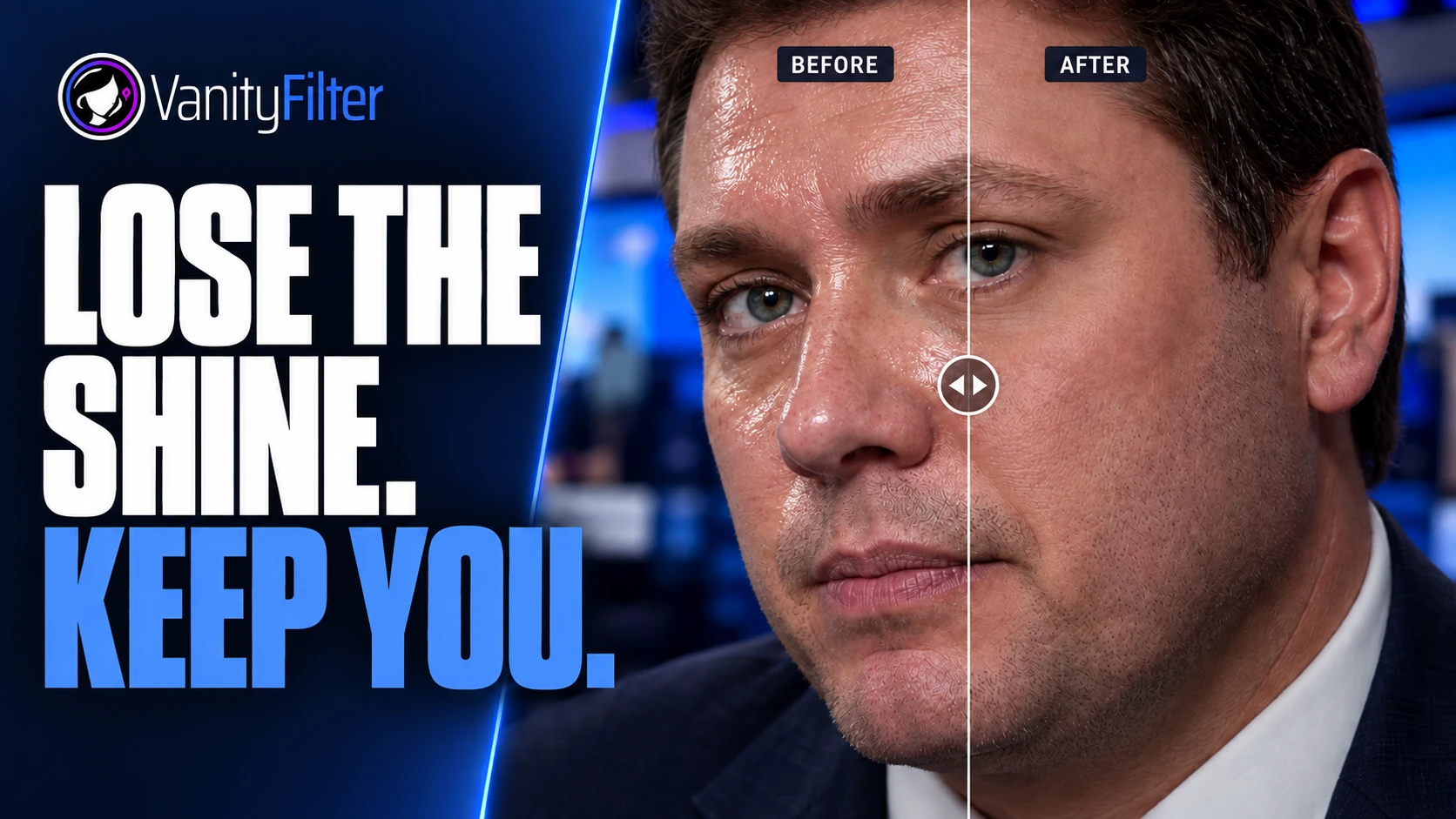
VanityFilter processes video offline on Windows. There is no subscription. See current pricing.