
Almost every guide on this topic tells you to flip a switch before the call. Great, except the meeting already happened. You are looking at a 52 minute file that is about to become a webinar replay, and the lighting was a ceiling panel and a laptop lid. Here is what the three big platforms actually do to your face, why you cannot undo it afterward, and how to treat the recording you already have.
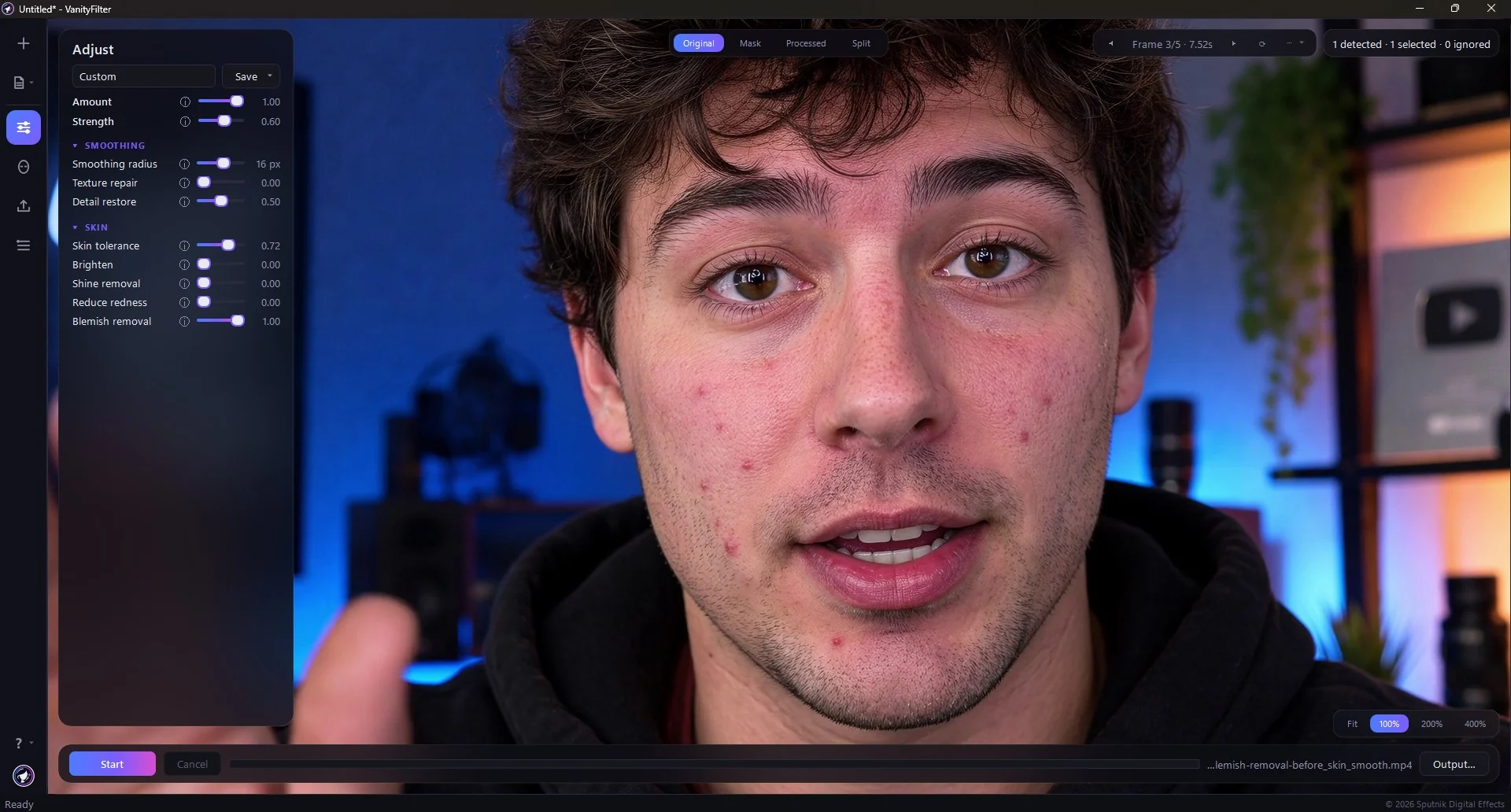
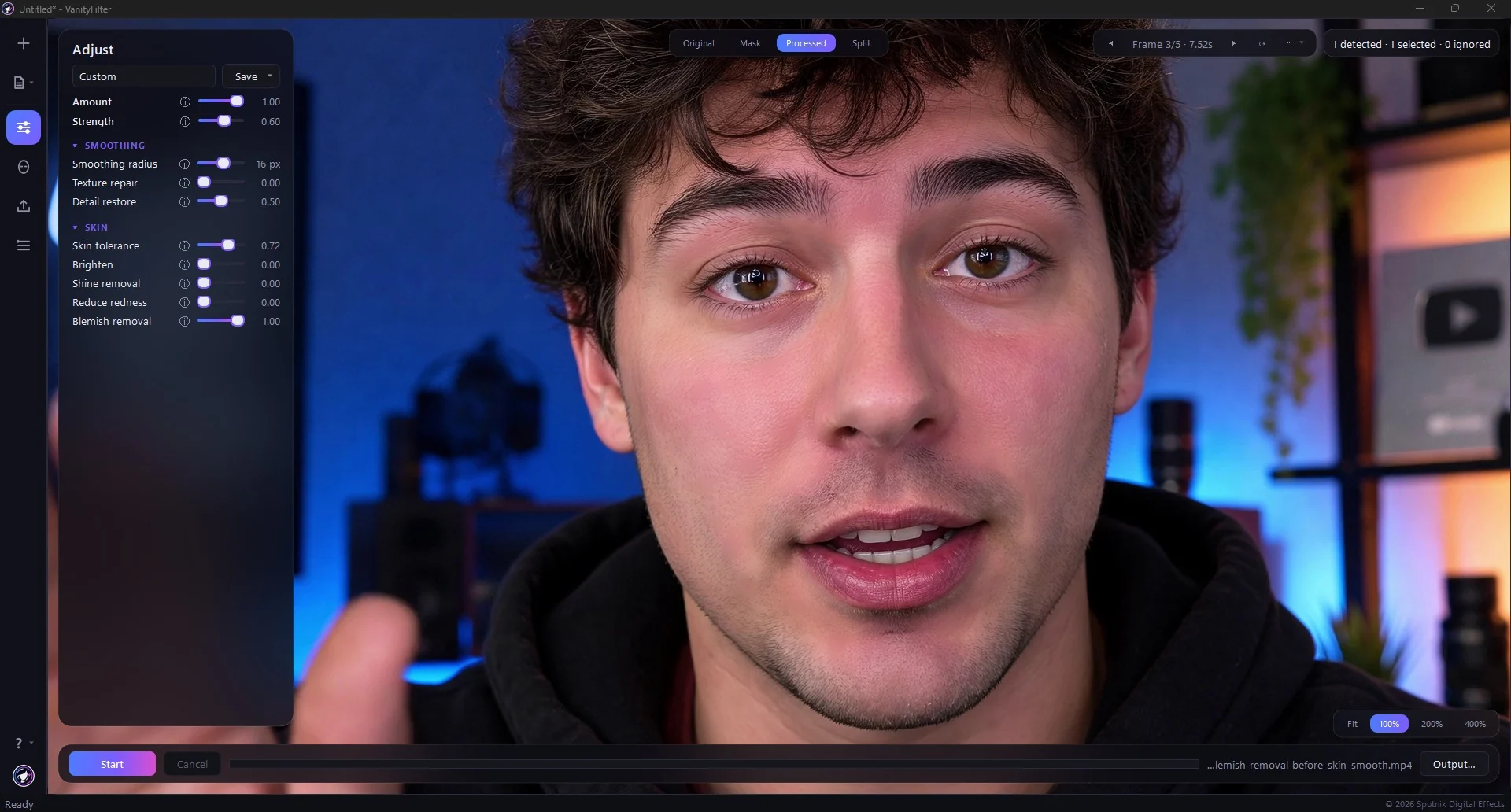
Real footage in VanityFilter 3.1.5, same frame, Original against Processed. The Adjust panel is left in shot so you can see the actual settings. The hair, hoodie and lit background are outside the mask, so they do not move.
The short version: the appearance filters in Zoom, Teams, and Meet run on the sender’s machine and change the video that leaves it, so they are permanent in the recording. If the filter was off and the footage looks rough, trim the file first, fix exposure and color second, then apply a low-strength skin-only pass per person and export at the source resolution. If the recording is internal or confidential, do that on your own machine instead of uploading it anywhere.
Three platforms, three names, one idea
They all do roughly the same thing and none of them call it the same thing, which is half the reason people cannot find the setting.
| Platform | What it is called | Where it lives | Worth knowing |
|---|---|---|---|
| Zoom | Touch Up My Appearance | Settings, then the video pane (current Zoom Workplace builds label it Video and effects) | A slider, not a single on/off. A separate Adjust for low light control handles brightness, with Auto and Manual options. |
| Microsoft Teams | Soft focus | Device settings, at the bottom, next to Adjust brightness | Can be turned on before or during a meeting. Desktop app only in practice, and administrators can switch it off for the whole tenant. |
| Google Meet | Portrait touch-up | Effects panel, alongside backgrounds and filters | Two modes. Subtle is very light complexion smoothing plus under eye lightening and eye whitening. Smoothing is slightly stronger. Limited to certain Workspace and Google One editions. |
Google’s wording is the most specific of the three, and it is worth reading closely. The Workspace announcement for portrait touch-up on the web describes both modes as complexion smoothing plus under eye lightening and eye whitening. That is not just a blur. It is a small stack of retouching decisions, made for you, at a strength somebody else picked.
All three are off by default. Meet’s more elaborate Studio look and Studio lighting effects are still gated behind Workspace Labs and supported desktop browsers, so do not build a workflow around them yet.
Why you cannot undo it later
These filters are not applied by the recorder. They are applied on your computer, to your camera feed, before the video is sent. That is the whole point: the filter exists so other people see the softened version. Whatever gets recorded, locally or in the cloud, is downstream of that.
None of the three vendors document a way to strip an appearance filter out of a finished recording, and there is no mechanism that would make one possible. The original pixels were never transmitted. Treat a live appearance filter exactly like a virtual background: a decision you made once, permanently, on behalf of every future clip.
This is the same trap live streamers fall into, and we went through it in detail in the OBS skin smoothing guide. Whatever the encoder composites is what the archive keeps, forever.
Find out what you actually have
- Open the file and check the resolution. Meeting recordings are often 720p, and cloud recording caps depend on the account plan, so do not assume 1080p.
- Scrub to a close moment and look at one face. Waxy cheeks with sharp eyebrows usually means a filter was on.
- Check every participant separately. On a group call, some people had a filter running and some did not.
- Note whether the layout is gallery view, speaker view, or a screen share with a small camera thumbnail.
Meeting footage is not camera footage
This matters more than most people expect, because the habits that work on a mirrorless camera file actively backfire here.
The noise is usually compression, not skin. Video calls run at low bitrates by design. What reads as blotchy or grainy skin is frequently blocking and mosquito artifacts crawling around the face, and smoothing them harder just turns a busy mess into a soft mess. Our guide to skin smoothing and compression covers how to tell the two apart before you reach for a slider.
The camera was on auto for an hour. Webcams and laptop cameras keep adjusting exposure and white balance during a call. Skin tone can drift noticeably between minute 4 and minute 40, which means a single correction applied to the whole timeline will be wrong somewhere.
Gallery view puts several faces in one frame. Each one has different lighting, a different camera, and a different amount of built-in processing. A global soft-focus effect applied to the whole frame is the wrong answer for all of them at once, and it softens the shared screen too.
Speaker view cuts. The frame swaps between people with no warning, so any treatment has to find the new face immediately rather than tracking one head through the timeline.
The order that works
1. Trim before you process. Cut the dead air, the waiting room, and the part where somebody could not find the share button. There is no reason to retouch 52 minutes to keep 18.
2. Fix brightness and color first. Underexposed and slightly green is the house style of remote video. Lift exposure and correct the cast before you touch texture, because a lot of what looks like bad skin is just bad light being rendered honestly.
3. Then treat skin, per person, gently. Start low and stop early. The reference point for a webinar replay is a person who slept well, not a magazine cover. On a low-bitrate source the plastic threshold arrives much sooner than it does on camera footage, so the setting that looks right on your DSLR clips will look melted here.
4. Watch it move. Play a full minute at normal size, including a head turn and someone leaning toward the mic. Still frames hide masks that chatter at the jawline.
5. Export at the source resolution. A 1280 by 720 recording should come out 1280 by 720. Do not let a tool quietly downscale it, and do not upscale it either, because upscaling a compressed call just makes the artifacts bigger.
The part nobody mentions: where the file goes
A meeting recording is not a vlog. It might contain an unreleased roadmap on a shared screen, a customer name, an HR conversation, a patient detail, or forty people’s faces who never agreed to appear in a marketing asset.
Most quick-fix beauty tools for video are browser based, which means the fix begins with uploading that file to somebody else’s server. For a personal talking-head clip, fine. For an internal all-hands, that is a data transfer decision, and in a lot of organizations it is one you are not allowed to make on your own.
This is a big part of why VanityFilter runs as a Windows desktop app and processes everything locally. The recording is read from disk and written back to disk. No upload, no queue, no account required to process a file. If your recordings are ever subject to a policy, doing the work offline removes the entire question.
A weekly series is a batch job
If you publish a recurring webinar or a standing internal show, you are not retouching a video, you are retouching a pipeline. VanityFilter’s command line accepts several input files at once with an output directory, and it keeps going through the rest of the batch if one file fails. Set the treatment once on a representative episode, then run the folder overnight.
Gallery view and the multi-face problem
This is the case that separates real skin processing from a soft-focus effect. A two-up or three-up call frame needs each face found and masked on its own, because the person by the window and the person under a ceiling light do not need the same correction.
VanityFilter detects every visible face in a frame, up to five, and builds a separate per person skin mask for each. A fallback detector catches turned and profile faces that landmark-based detection misses, which happens constantly on calls where people glance at a second monitor. Eyes, brows, lips, hair, glasses, and the background stay outside the mask, so the shared screen behind somebody’s head does not go soft.
If your recording is a remote two-person interview headed for YouTube rather than an internal replay, the podcast and livestream guide goes deeper on framing and consistency between two different cameras.
So should you just turn the filter on next time?
Sometimes, yes. Use the live filter when the call is the whole product and nobody is going to edit it: a sales demo, a discovery call, a webinar streamed live with no replay. It costs nothing and it is one less step.
Leave it off when the recording has a second life. Course modules, replays, clips cut for social, podcast video, anything that gets a thumbnail. Those all deserve a decision you can still change, at a strength you choose, applied to each person rather than to the whole frame. And if you leave it off and the footage turns out fine, you have lost exactly nothing.
FAQ
Can I turn off Zoom’s Touch Up My Appearance after the meeting is recorded?
No. Touch Up My Appearance changes the video you send to other people, so the softened version is what the meeting
captured. Zoom does not document any way to remove it from a finished recording. Treat a live appearance filter as
baked into the file, the same way you would treat a virtual background.
Does Microsoft Teams have a skin smoothing filter?
Yes, it is called Soft focus, and it sits next to Adjust brightness in the Teams device settings. It applies a
smoothing effect to your face and can be turned on before or during a meeting. It is off by default, it is a desktop
app feature rather than a browser one, some plans do not include it, and IT administrators can disable it for an
organization.
What does Google Meet portrait touch-up do?
Google Meet offers two portrait touch-up modes. Subtle applies very light complexion smoothing, under eye lightening,
and eye whitening. Smoothing applies slightly more complexion smoothing with the same under eye and eye adjustments.
It is off by default, it arrived on mobile in October 2023 and on the web in March 2024, and it is limited to certain
Google Workspace and Google One editions.
Should I use the live meeting filter or fix skin in post?
Use the live filter when the call itself is the deliverable and nobody will edit it. Fix it in post when the
recording becomes a webinar replay, a course module, a podcast episode, or a clip. Post gives you per person control,
an adjustable amount, and the option to change your mind. The live filter gives you one setting that is applied once
and cannot be undone.
Can I smooth skin on a call recording that has two or more people in the frame?
Yes, if the tool works per person rather than per frame. VanityFilter detects every visible face in a frame, up to
five, including turned and profile faces, and builds a separate skin mask for each person. A gallery view recording
with two or three participants is treated as several people, not as one blurred rectangle.

VanityFilter opens MP4, MOV, AVI, and MKV files and processes them offline on Windows. There is no subscription. See current pricing.